In this short article, we will look at the procedure for configuring backups of VMware vSphere VMs stored on HPE Alletra using the Veeam Backup from Storage Snapshots feature.
For those who don’t know, this feature allows us to reduce the virtual machine snapshot lifetime from minutes or hours to just seconds, and it is available for use with many storage vendors and models.
How do backups from storage snapshots actually work? It includes several steps:
1. VM Snapshot Creation: After starting the backup job, Veeam triggers a standard VM snapshot creation;
2. Storage Snapshot Creation: Next, Veeam creates a hardware snapshot of the LUN (or Volume) on the storage system where the VM resides. At this point, the storage snapshot contains a consistent state of the VM datastore, including the already “snapshotted” VM;
3. VM Snapshot Deletion: Veeam immediately deletes the VM snapshot. It is no longer needed because we have a VM with active snapshot in the storage snapshot and VM’s files won’t change in it;
4. Mounting the Snapshot: Veeam mounts the storage snapshot to a suitable Backup Proxy (which must have SAN connectivity). This is essentially seen as mounting the LUN with the VMFS datastore directly to the Veeam proxy;
5. Data Transfer: Veeam reads the VM data and performs the backup directly from the mounted storage snapshot;
6. Cleanup: Once the backup is finished, Veeam unmounts the LUN from the proxy and removes the temporary hardware snapshot from the storage array.
From the “hardware part” we need a proxy server connected to the SAN with the storage, where VMs are located. Veeam will do the rest. It will create hosts and exports from the storage side and mount them from the proxy side.
It’s also good to check specific storage requirements. Some storages may require additional licenses.
Now let’s start with the configuration.
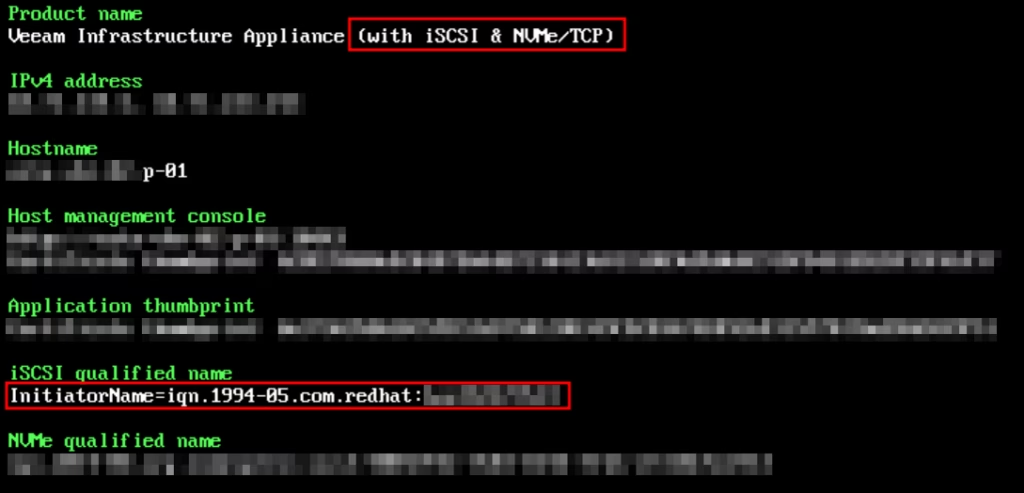
In my case, I use the proxy server based on the Veeam Infrastructure Appliance, which has enabled iSCSI and NVMe over TCP.
This host has two network interfaces: one for management and backup traffic and the other for iSCSI and storage access.
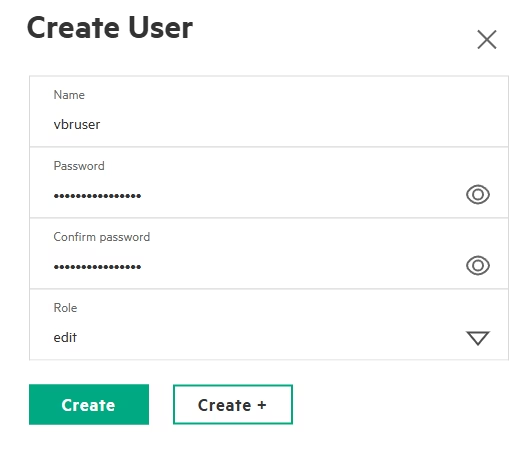
Before we begin with the Veeam configuration, the first thing we need to do is create a service account that Veeam will use to access the storage.
By default, HPE Alletra provides a set of roles with different privileges. In my case, I use the “edit” role.
Although there is another role called “basic_edit”, this role has some major limitations, preventing the Veeam user from deleting snapshots, which results in failed jobs.
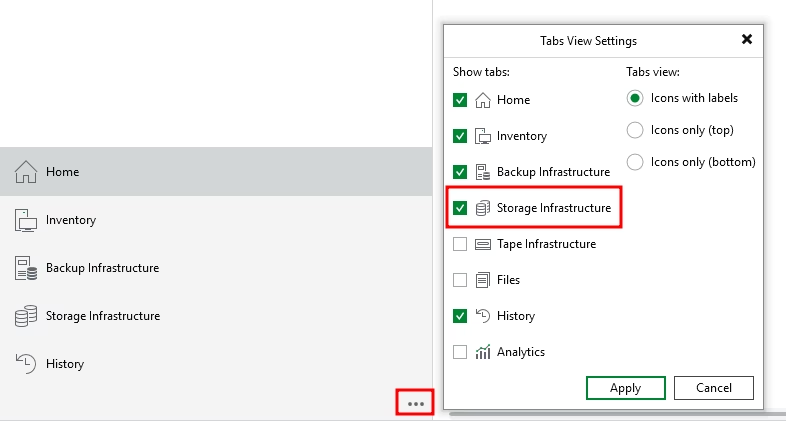
After creating a user, navigate to the Veeam Backup Console. Locate the “Storage Infrastructure” section. If you don’t see it in the left pane, you can add it, as shown in the screenshot below:
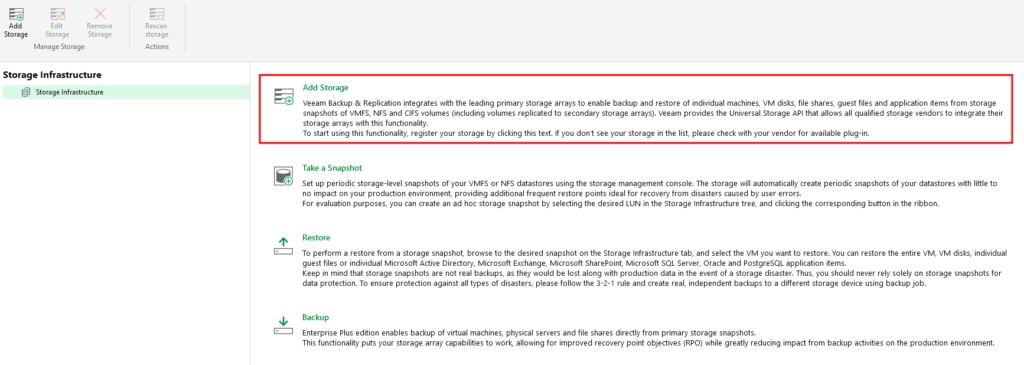
Next, click “add storage”:
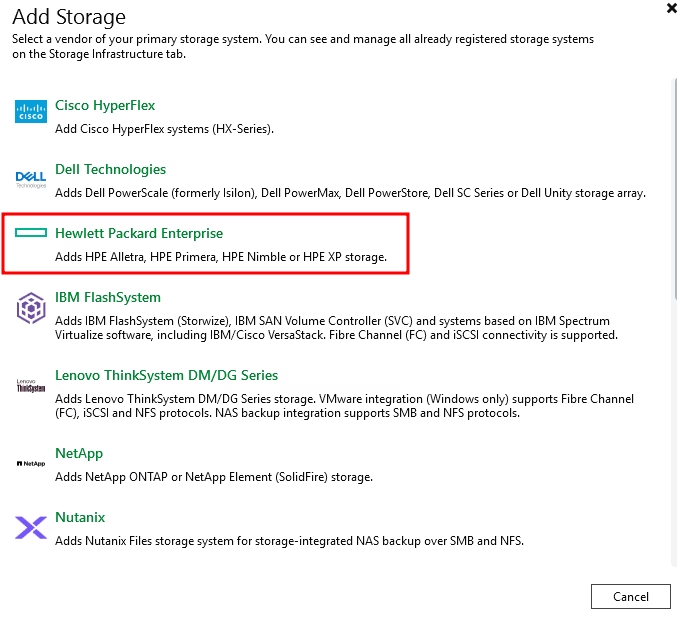
Among the list, select “Hewlett Packard Enterprise”:
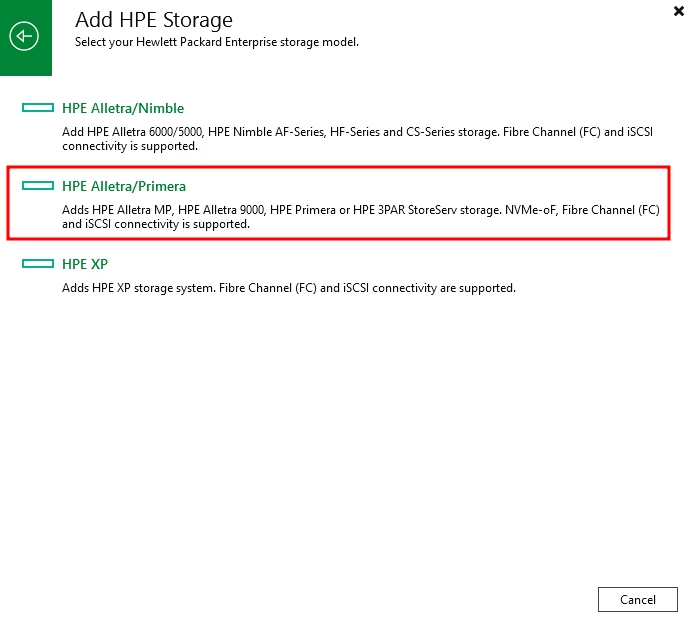
In addition, select your storage type; in my case, it is HPE Alletra/Primera:
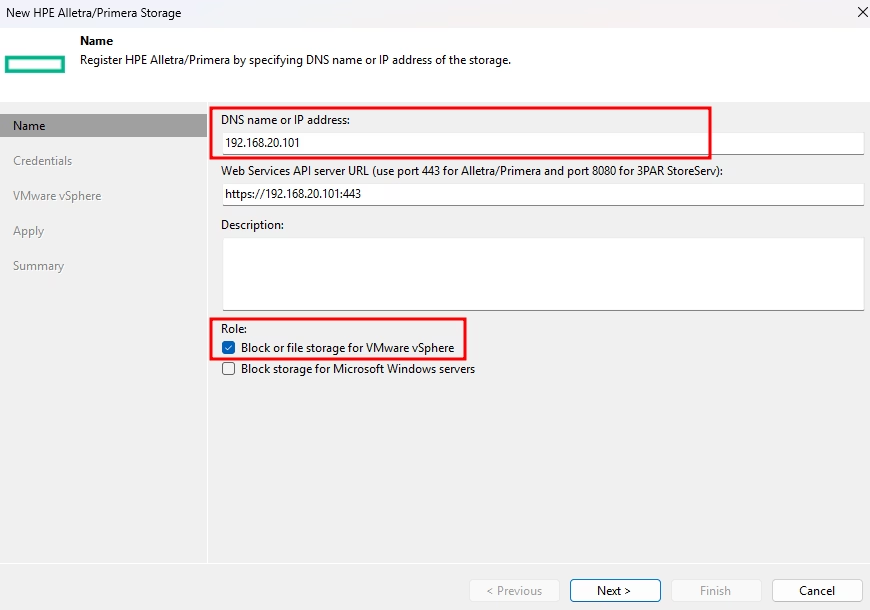
Provide the Storage DNS or IP management address and select a role; in my case this is block storage for VMware vSphere:
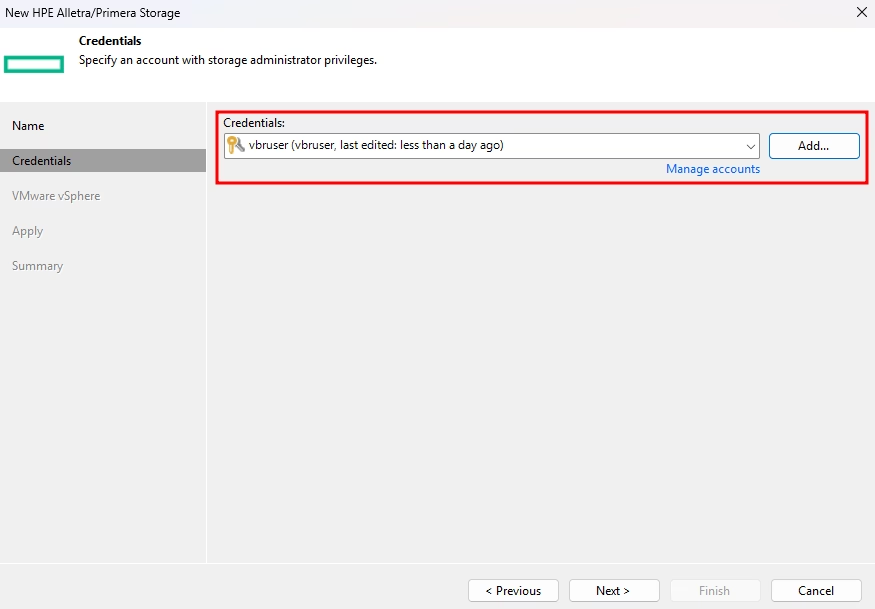
Add the user previously created on the storage and select it:
In the next window, select a desired protocol (in my case: iSCSI). You can also select a specify proxy and a mount server:
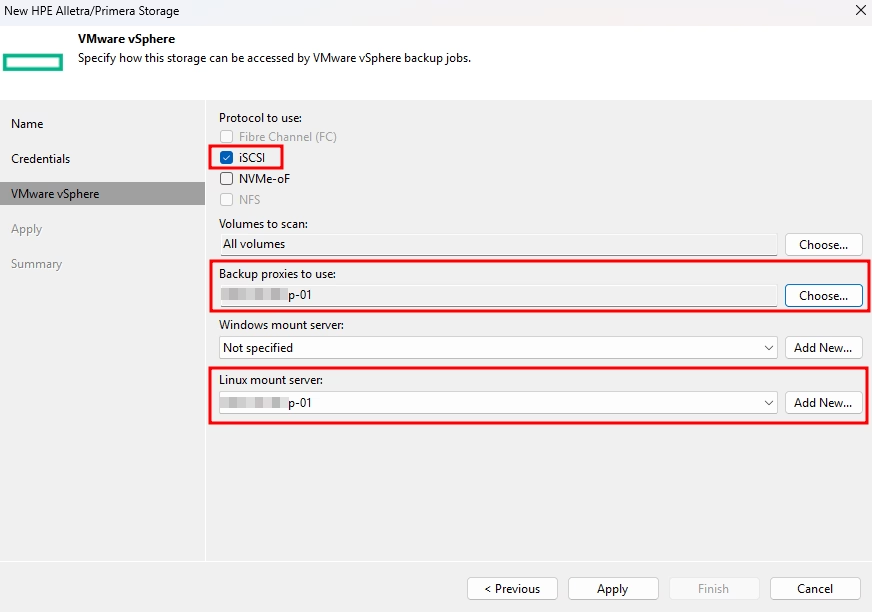
Additionally, you can select volumes to scan. For example, if you want to use backup from storage snapshots only for a specific volume.
Click Apply and the storage will be added to your Veeam infrastructure:

At this point, we’ve completed the initial configuration, and it’s time to run a backup job.
Before running the job, ensure that “Enable backup from storage snapshots” is enabled in the advanced settings:
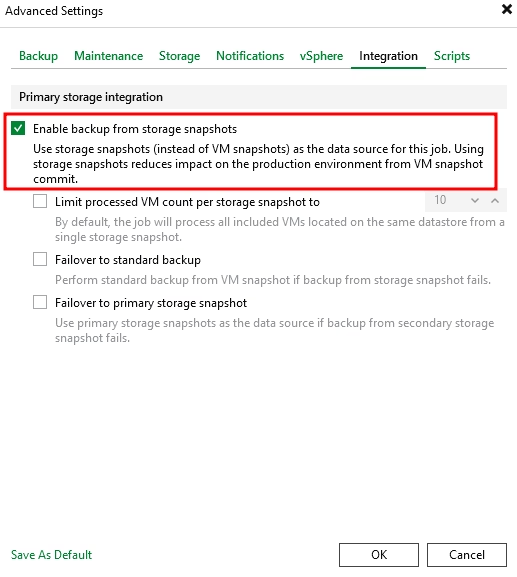
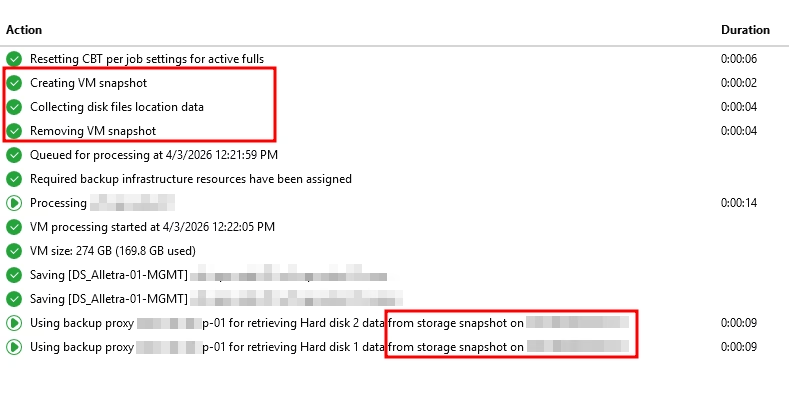
If configured correctly, after starting the backup job, you will notice only a single operation between the creation and removal of the VM snapshot:
And this is how it looks without backup from storage snapshots:
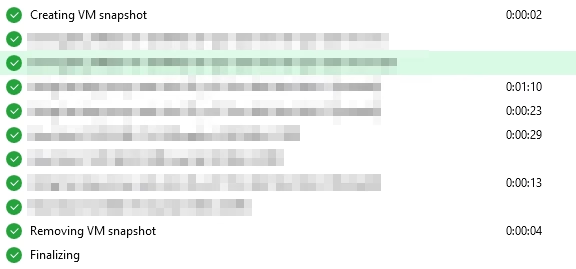
In the first case, the VM snapshot is deleted immediately after the storage snapshot is created. In the second case, the VM snapshot remains until the backup job is complete.
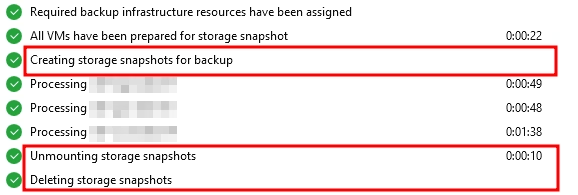
You can also notice new tasks related to the storage snapshot creation and deletion:
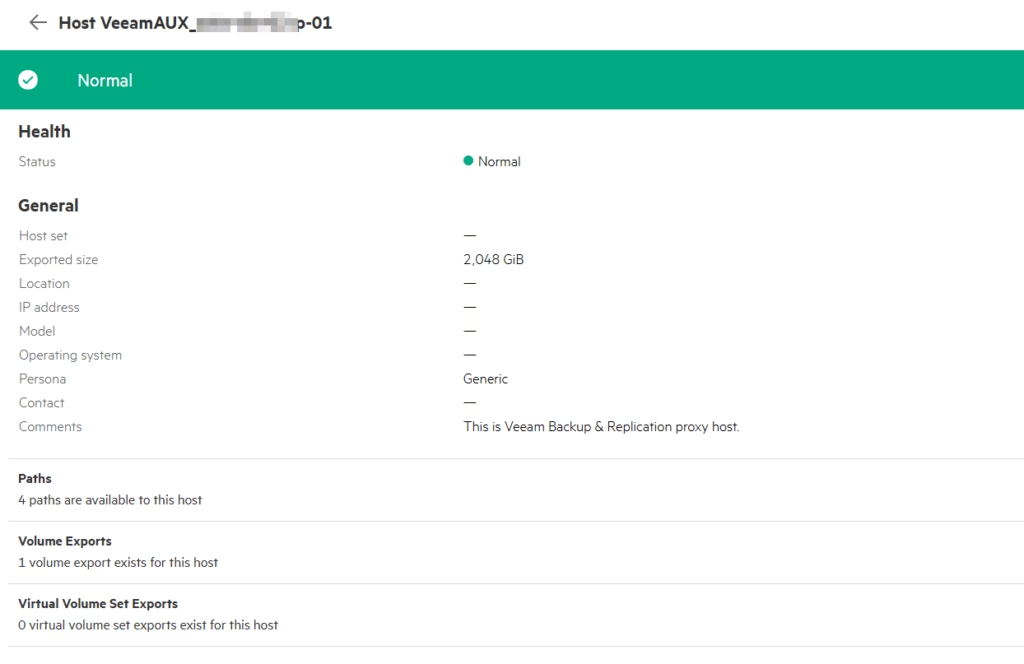
And what is happening on the storage at the moment of backup? First, you will see that Veeam created a new host (this is our proxy):
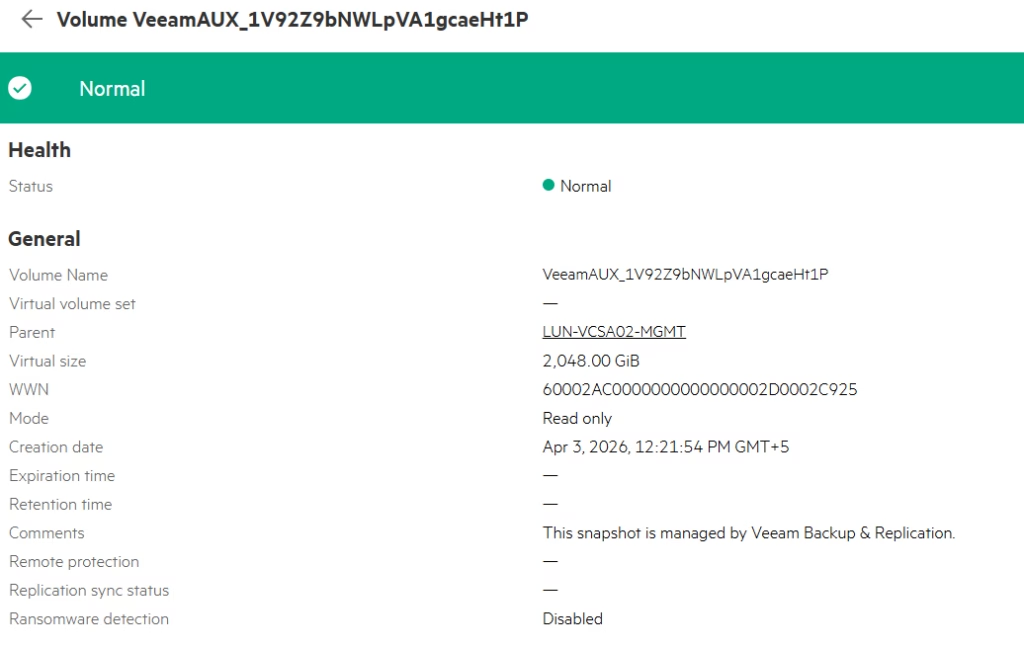
Veeam also created a volume snapshot:
You will also see a copy of the parent Volume:

The last thing you may notice is the created export of the volume where the initiator is our proxy server.
After a backup, Veeam will delete all created snapshots and exports, but the host will be presented in the storage configuration to prevent repeating these tasks in the next backup session.
In conclusion
This is how Veeam backup from storage snapshot technology works for HPE Alletra storage.
This is a really useful feature that minimizes the impact of the VMware snapshots on the production VMs, especially for monster VMs. I recommend you use BFSS when possible.
You may follow this guide for any other storage, because the main principles are the same. The difference in the most part is how Veeam interacts with the storage and how it looks from the storage side.
