VCF Operations for Logs (formerly Log Insight) is a powerful tool allowing us to keep, maintain, and explore logs from the VMware Cloud Foundation components, and this is one of the critical components of any virtual infrastructure.
In this short article, we will deploy VCF Operations for Logs and configure vCenter Server, ESXi hosts, and VCF Operations to send logs to the newly deployed appliance.
To deploy a VCF Operations for Logs instance, we need to get a preconfigured OVA appliance from the Broadcom Support Portal.
To do this, search for the “VMware Cloud Foundation Operations for Logs Appliance” within the VMware vSphere Foundation or VMware Cloud Foundation software groups.
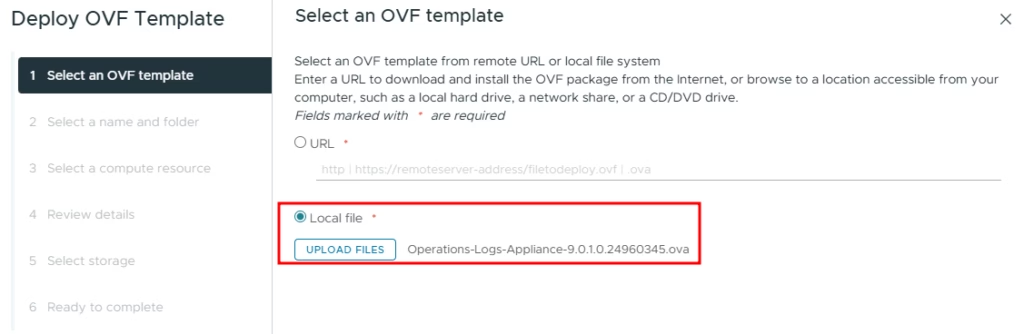
In my case, I downloaded the latest available package: Operations-Logs-Appliance-9.0.1.0.24960345.ova.
After downloading, to deploy a VM from the OVA file, right-click on the host/cluster and select “Deploy OVF Template”.
This procedure should be familiar for most of the VI admins, but I will cover a few steps.
First, select a downloaded OVA file:
Next, provide a VM name and location.
Most of the OVA files may require additional information before deployment to preconfigure a newly deployed VM.
First, we should decide on the VM’s configuration:
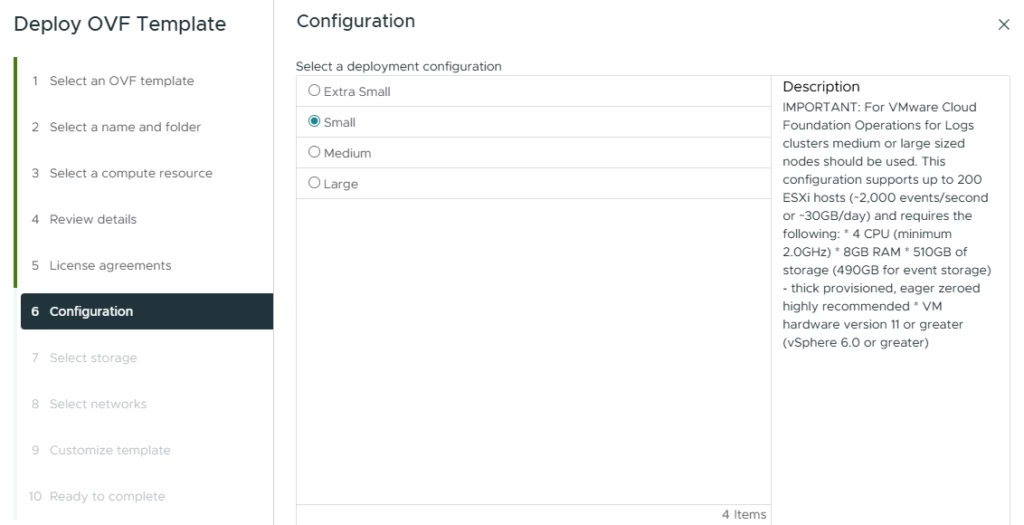
The deployment configuration should be based on the number of managed hosts and on the amount of generated data, which will reflect on the VM size:
On the right pane, we can see a recommended deployment configuration, based on the size of the infrastructure. In my case, I use vSphere Foundation and have a few hosts with a little possibility to grow, so I select a small configuration.
For VMware Cloud Foundation, it is advisable to use medium or large nodes.
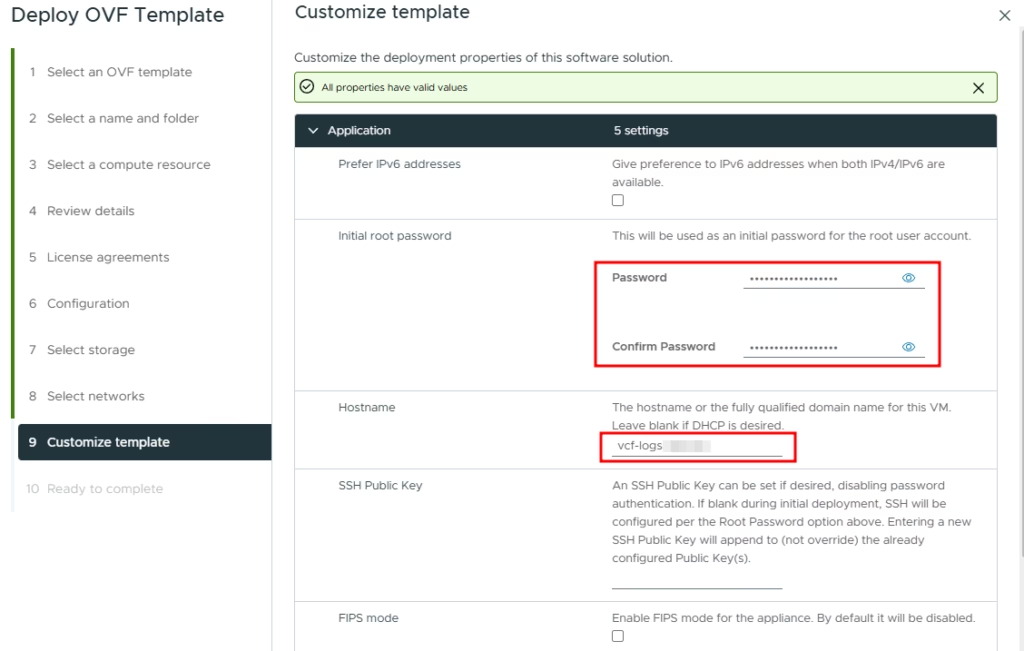
Next, we need to select a data store and a network for the VM. And the last step is to set up the root user password and hostname:
And the IP configuration:
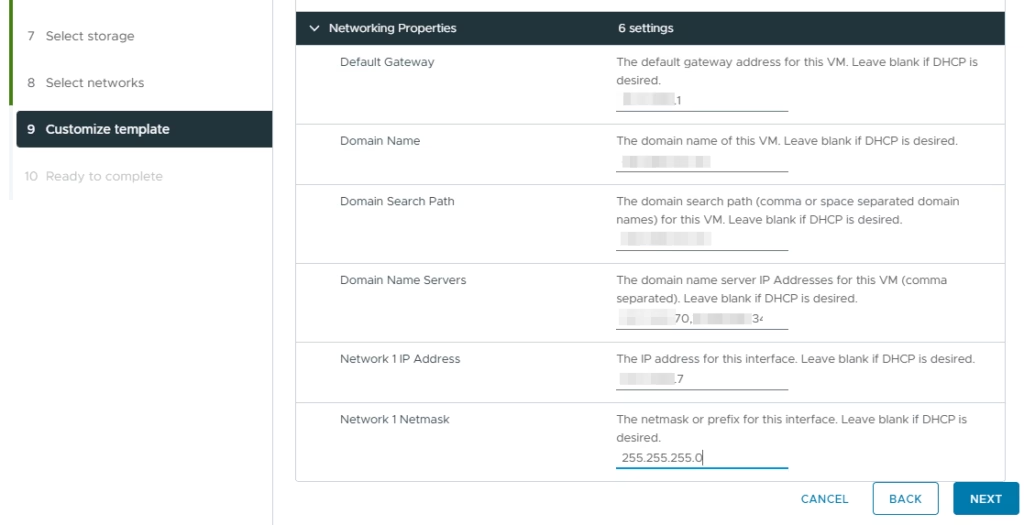
After that, review the configuration and deploy a new VCF Operations for Logs instance.
After deployment, we can connect to the predefined IP address or hostname using a web browser and start the initial configuration:
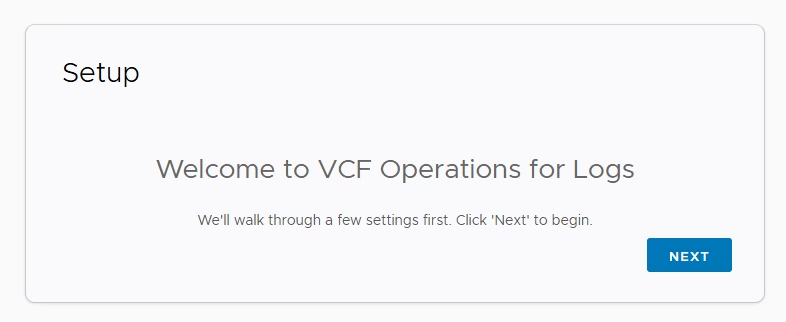
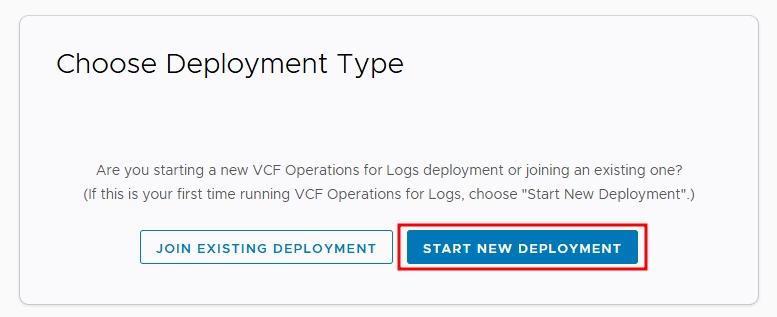
Click next, and start a new deployment:
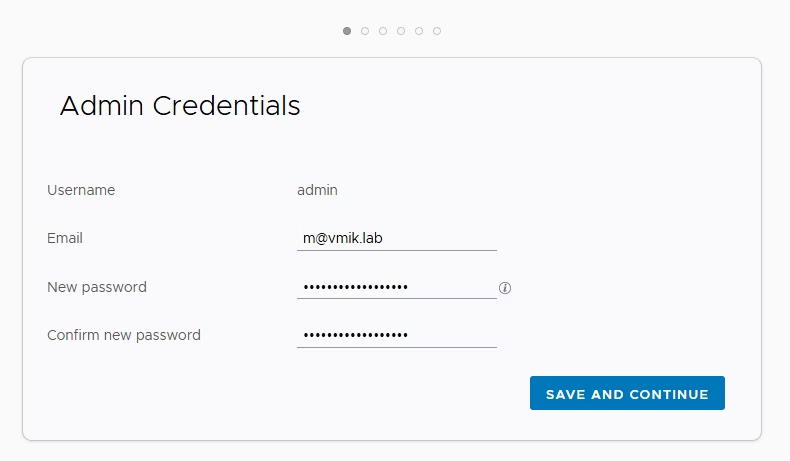
Provide email and password for admin user:
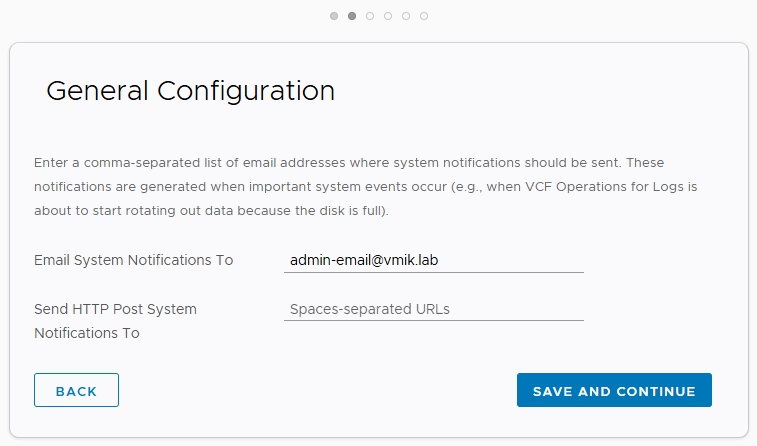
In the next window, configure the email list for receiving system notifications:
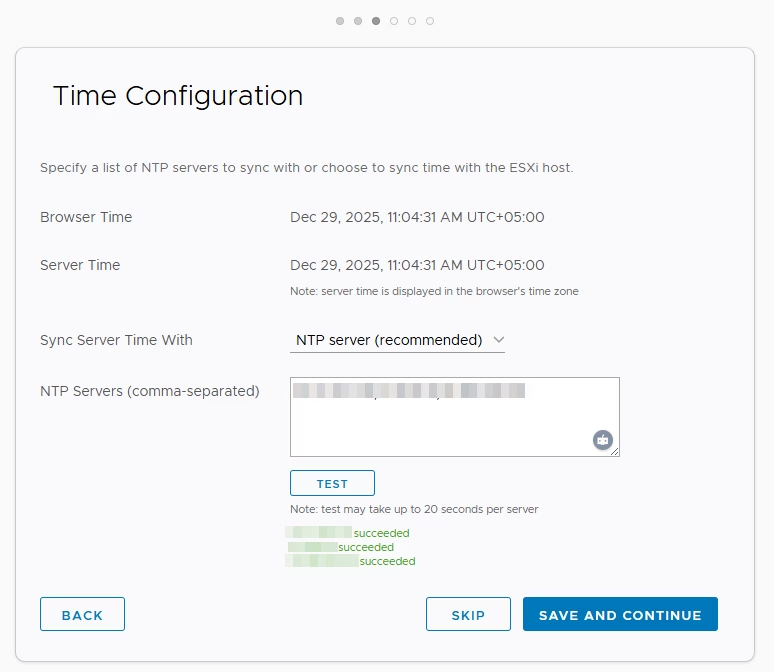
Time configuration is an important step, so I recommend synchronizing server time with the NTP server. It is possible to add more than one server, using commas to separate them:
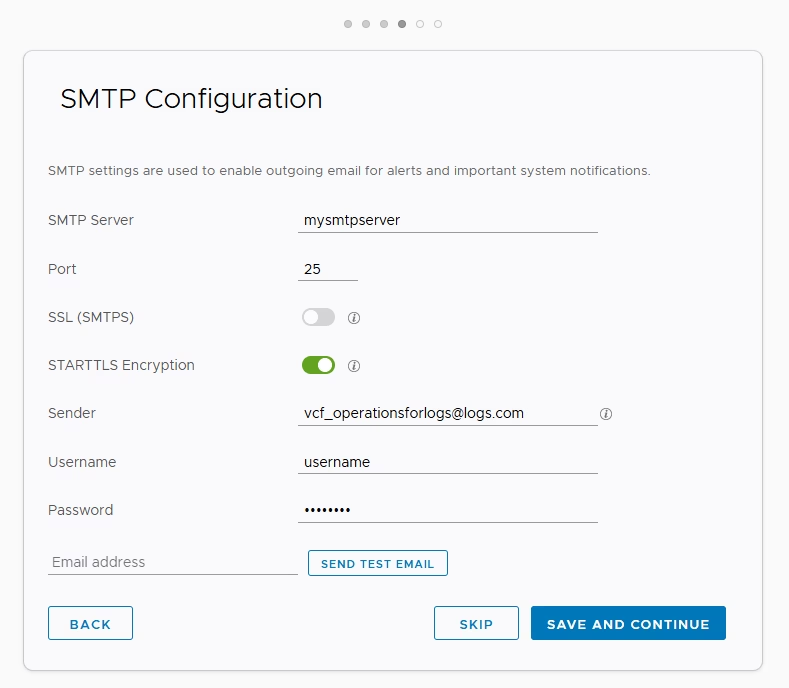
The last step is to configure SMTP server settings. This server will be used to send email alerts. It is possible and recommended to test alerting using the corresponding button:
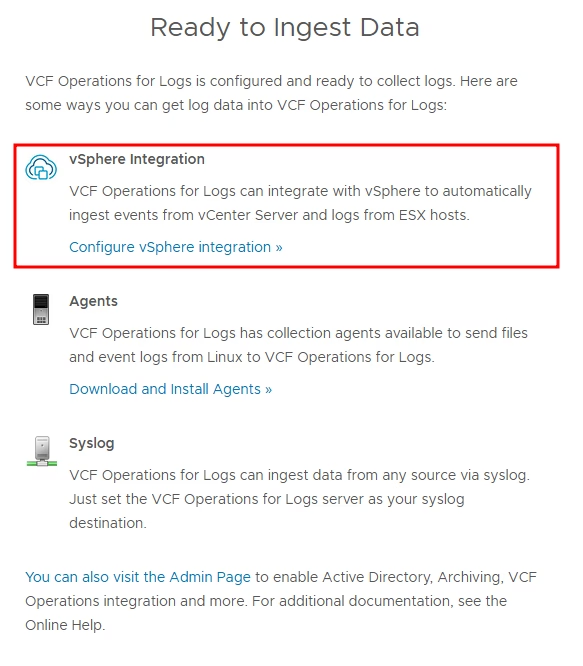
After the initial configuration, on the main screen of the VCF Operations for Logs, we can follow the recommendation and enable a vSphere Integration:
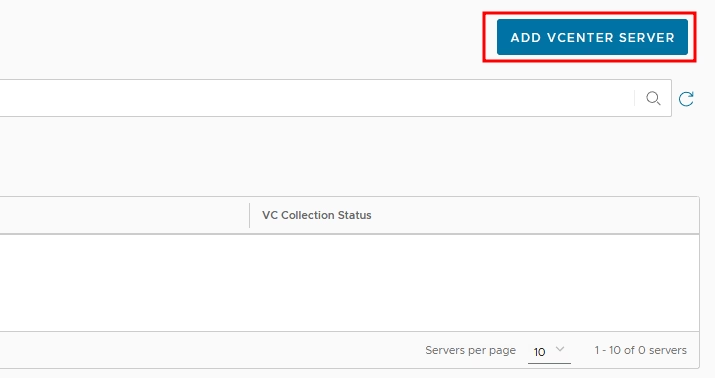
In the opened window, click “Add vCenter Server”:
Provide the vCenter Server’s connection details as well as login and password:
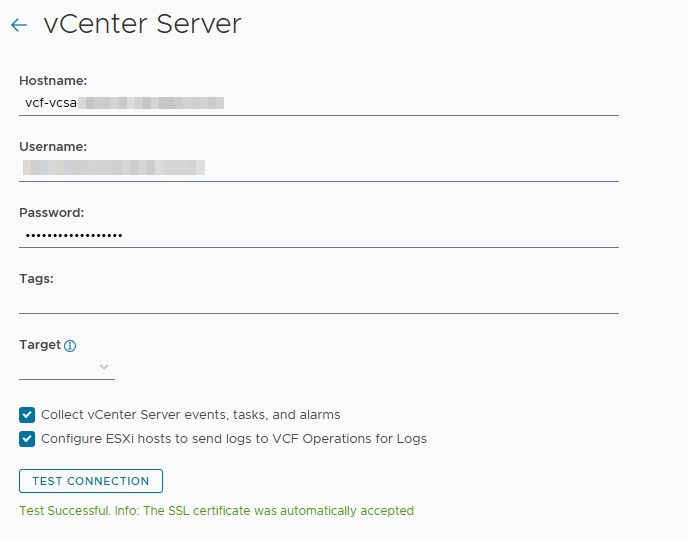
Clicking Test Connection, we can verify that the log instance has access to the vCenter server.
At the bottom, we can see ESXi hosts managed by this vCenter Server, and we can configure log forwarding for those hosts:
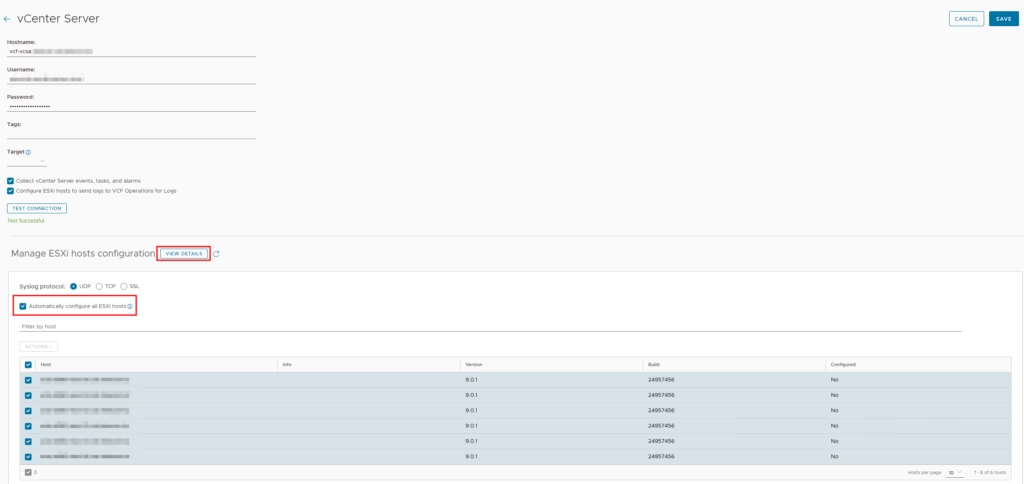
Clicking “Save”, we will see a newly added vCenter instance:

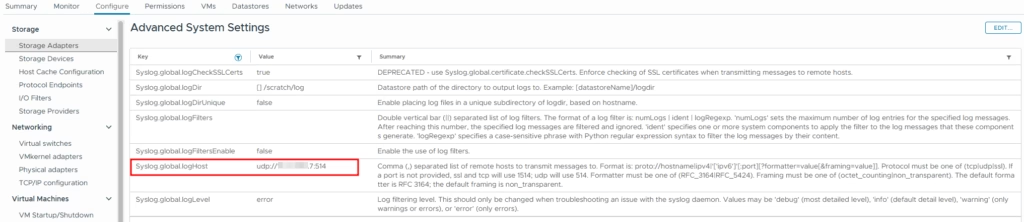
If we verify our ESXi hosts, we will see that the syslog.global.logHost setting is pointing to VCF Operations for Logs Appliance, meaning that hosts will forward logs to this server:
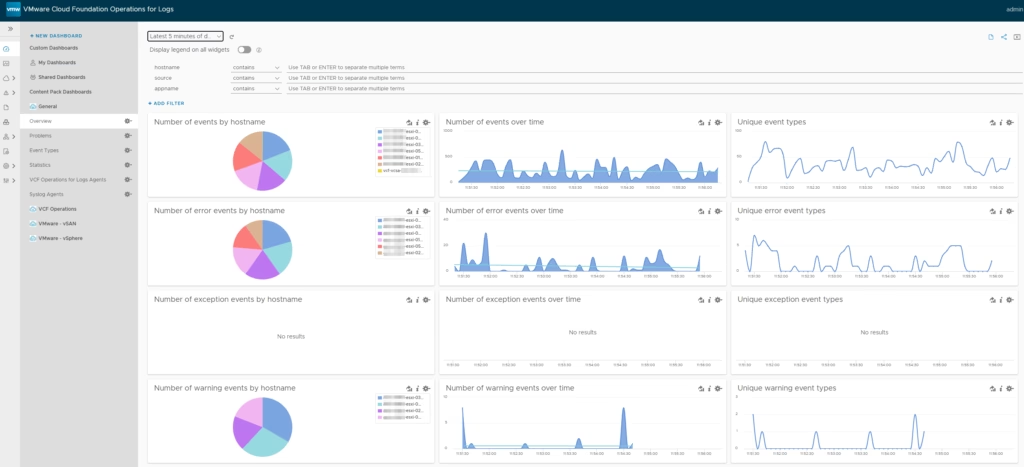
If we explore logs, we will see that the logs are now forwarding to the appliance:

We can also check the default but very informative dashboard:
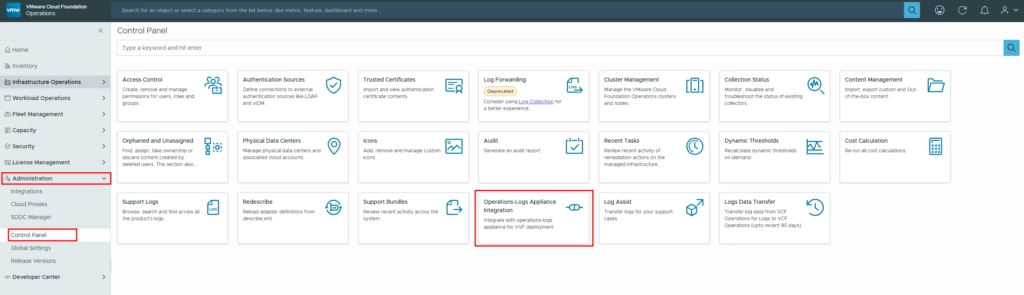
Now let’s integrate our VCF Operations instance with VCF Operations for Logs. To do so, in the VCF Operations, select “Control Panel” under the “Administration” menu.
From the control panel, select Operations-Logs Appliance Integration:
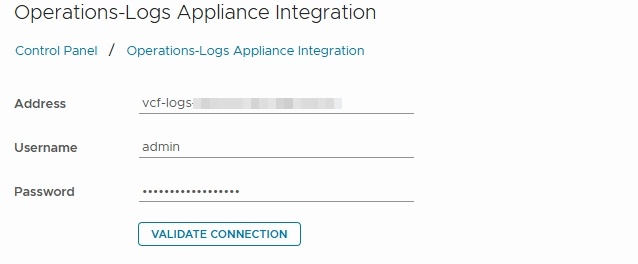
In the opened window, provide connection details, and click Validate Connection:
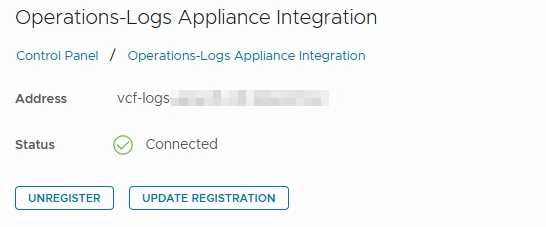
If the connection is successful, click save, and we can see that the status should be changed to “Connected”:
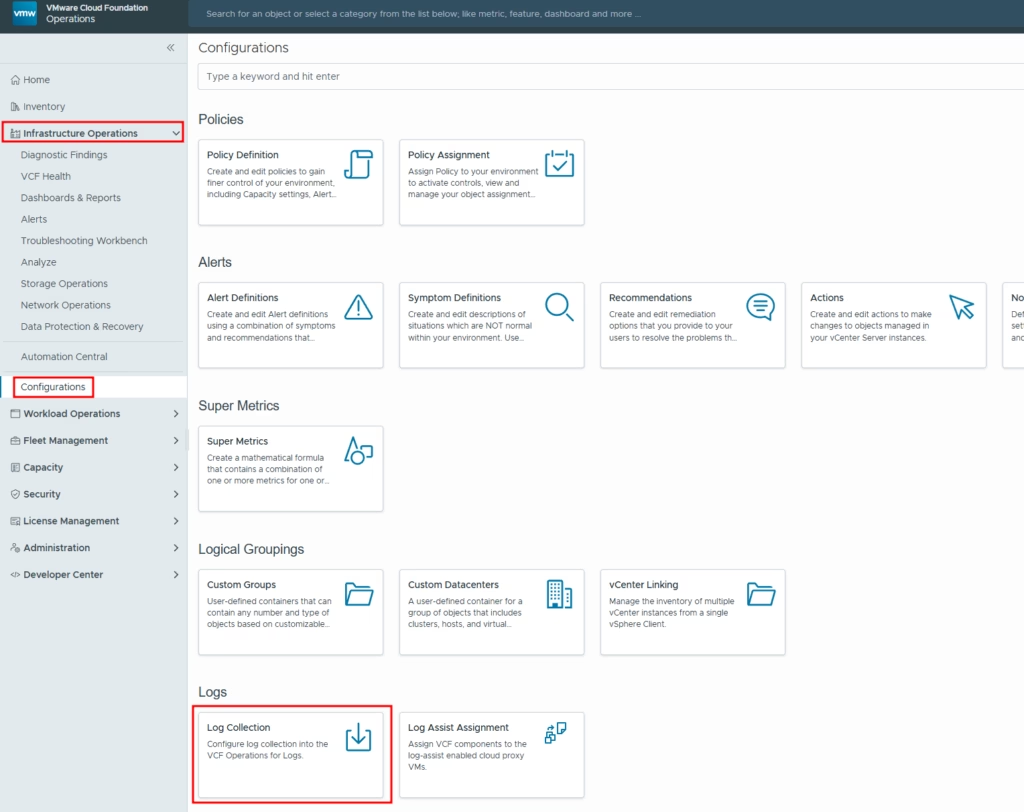
Now we can configure VCF Operations logs forwarding. To do that, open “Configurations” under the “Infrastructure Operations” and click “Log Collection”:
Next, click on the three dots near the VCF Operations instance:
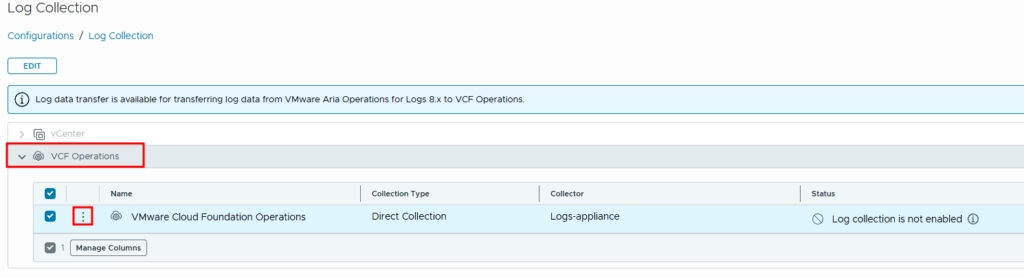
In the following window, select our VCF Operations for Logs server, and select the logs you want to transfer to this server. In my case, I select everything:

Click save, and in a while, you will see that new logs are appearing in the log server:
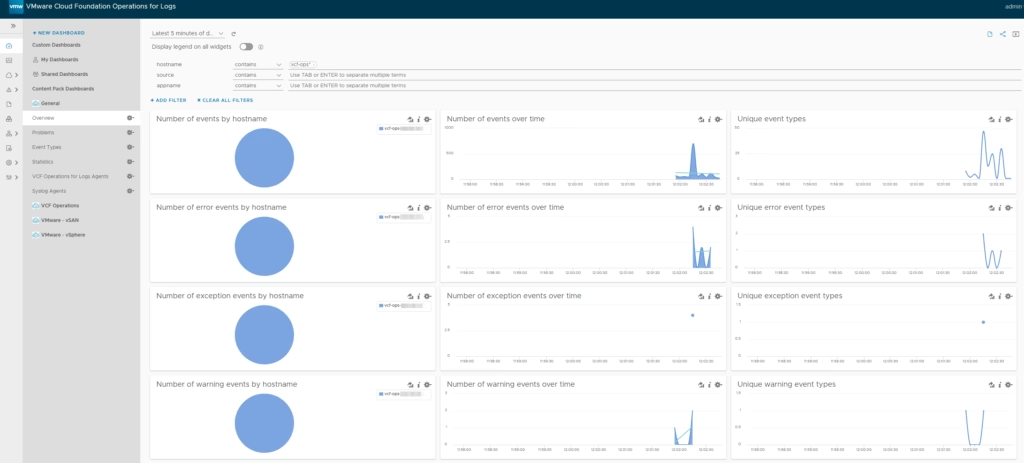
And this is how to deploy a new VCF Operations for Logs instance and how to configure log forwarding from vCenter Server, ESXi hosts, and VCF Operations.
One other thing to mention is installing a license on the server. By default, after deploying the appliance, you will see that there is no installed license:
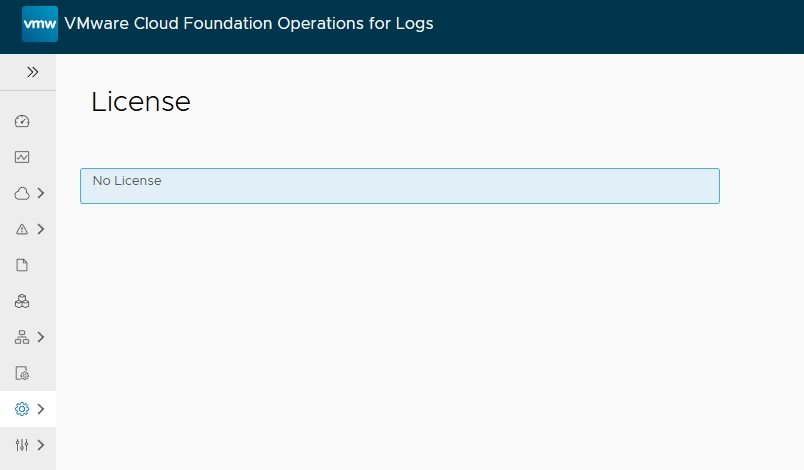
In VCF 9 (or VVF), all licenses are managed through VCF Operations, and right after configuring integration between VCF Operations and VCF Operations for Logs, it will push a license to the log server; no additional configuration is needed:

And that’s all on basic deployment and configuration of the VCF Operations for Logs server. Please remember to use this component for your VCF or VVF deployments, because it’s already included in the subscription and doesn’t require any additional investments, as it did in previous versions of vSphere.
