One of the most interesting features for me in the latest VBR 13.1 release was VirtIO driver injection, which automatically injects VirtIO drivers when restoring non-KVM backups to Nutanix, Proxmox etc.
In this post, we’ll take a look at how it works under the hood.
As you may know, prior to version 13.1, restoring a Windows-based VM to a KVM infrastructure (such as Nutanix or Proxmox) led to a BSOD due to missing VirtIO drivers in the Windows OS.
The only way to fix this issue was to install VirtIO drivers prior to the migration or restore procedures.
Starting with v13.1, Veeam Backup & Replication Server can inject VirtIO drivers into the guest VM when restoring it from a non-KVM environment to a KVM-based environment (note: not all hypervisor vendors are supported).
In this example, I am using a few Windows Server-based VMs, located in a VMware vSphere cluster. I will restore both VMs to the Nutanix AHV infrastructure.
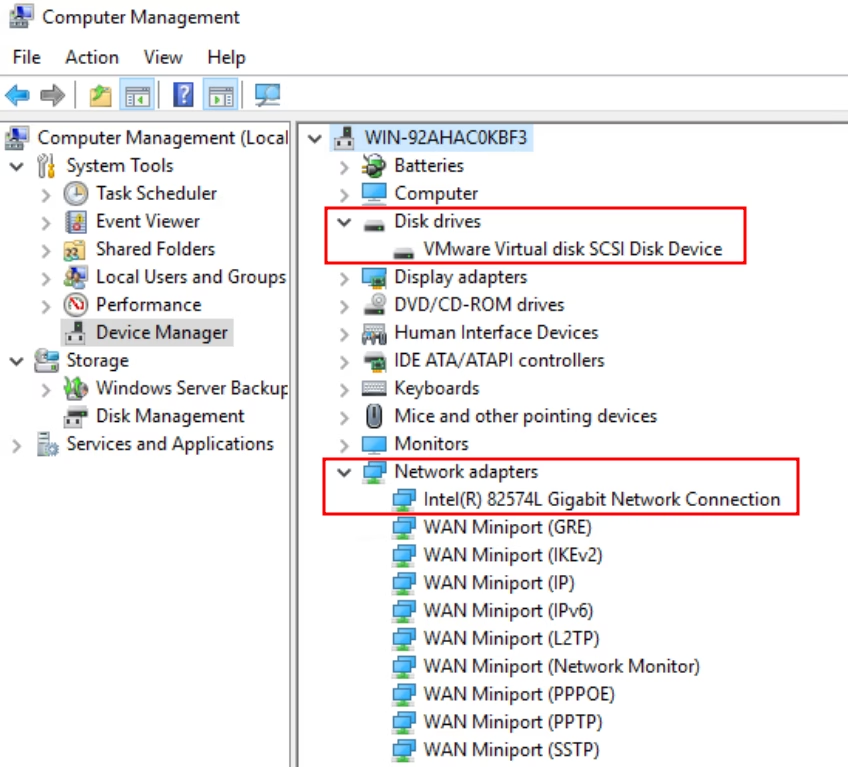
This is how my VMs device look:
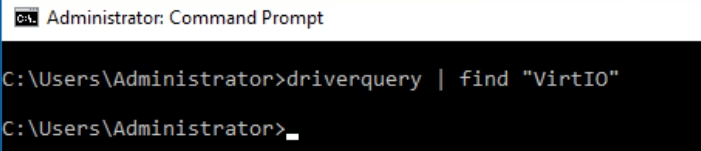
There are no VirtIO drivers installed in the sourve VM:
Now let us restore this VM from a vSphere backup to the Nutanix AHV cluster. Without any actions on our part, we can see an entry in the log:

Veeam automatically detects both the source and target hypervisors and handles driver injection without requiring any extra setup.
Here is how the restored VM looks like:
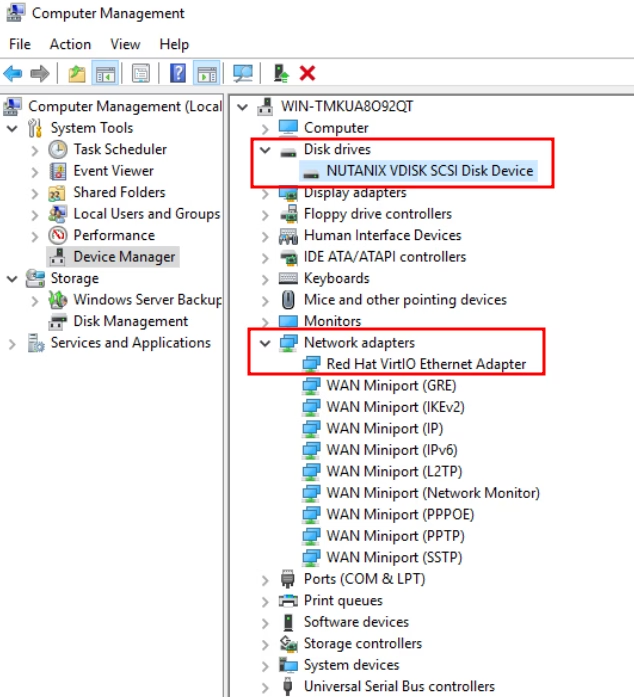
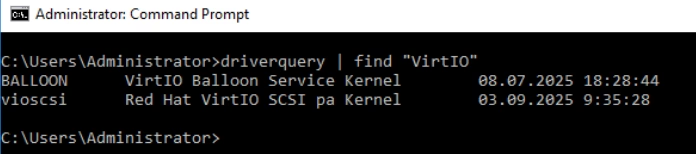
Red Hat VirtIO drivers have been successfully installed on the VM and Windows VM booted without any issues.
In my next test, I tried performing an Instant Recovery to Nutanix AHV. However, Veeam didn’t inject the driver, and the restored VM failed to boot:
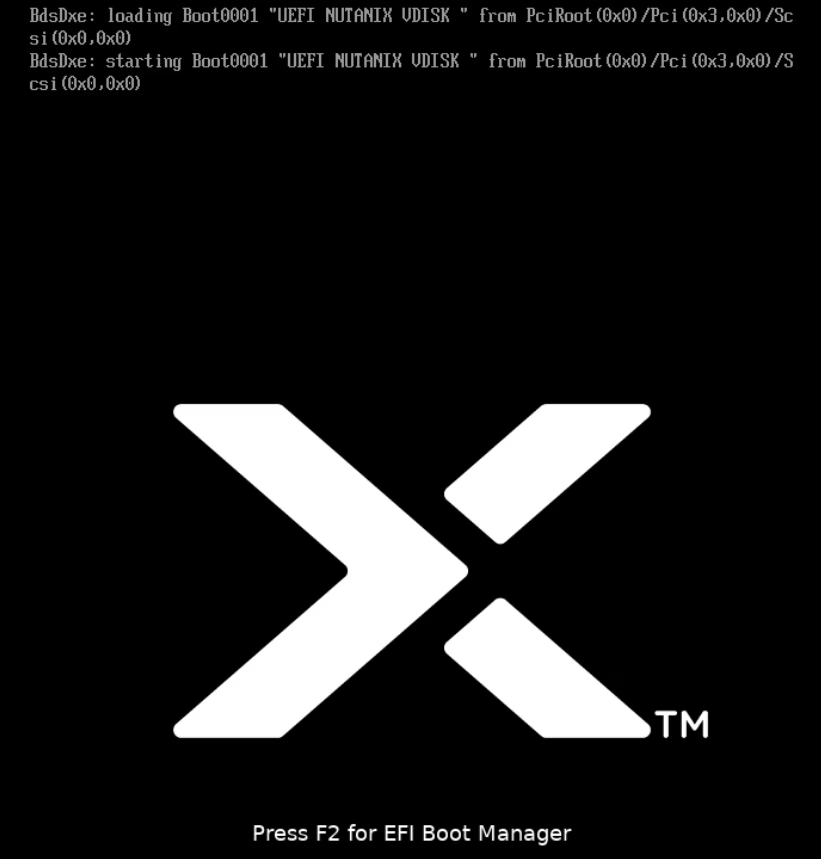
So, if you plan to use Instant Recovery, make sure to install the VirtIO drivers on the source VM before the backup:

And your VM will boot during the Instant Recovery:
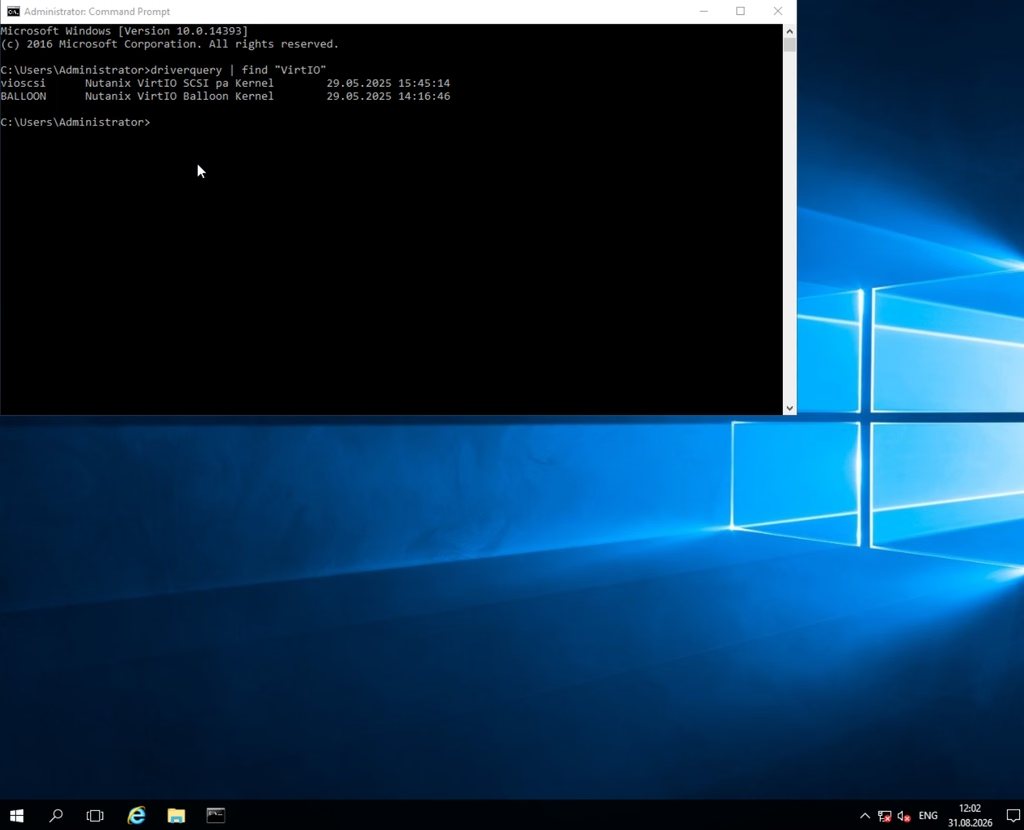
You may notice that in this case I use Nutanix VirtIO drivers.
Fun fact: even if you’ve already installed Nutanix VirtIO drivers on the source VM, a standard restore to Nutanix AHV will replace them with its own default drivers.
And that is how VirtIO driver injection works in Veeam 13.1. To recap: Veeam automatically injects drivers during a standard VM restore, but does not do so during Instant Recovery. So, if you plan to use Instant Recovery for your Windows VMs, be sure to pre-install the VirtIO drivers beforehand.
One more thing.
Disclaimer: The steps below are for informational purposes only. You should not need to perform this during standard operations. Always consult support before making changes to configuration files.
By the way, you can completely disable automatic driver injection if needed. This is managed via the VBR server management interface on port 10443.
To do this, you’ll need to update the appsettings.json file corresponding to your target virtualization platform (in my example, platform-service-ahv):
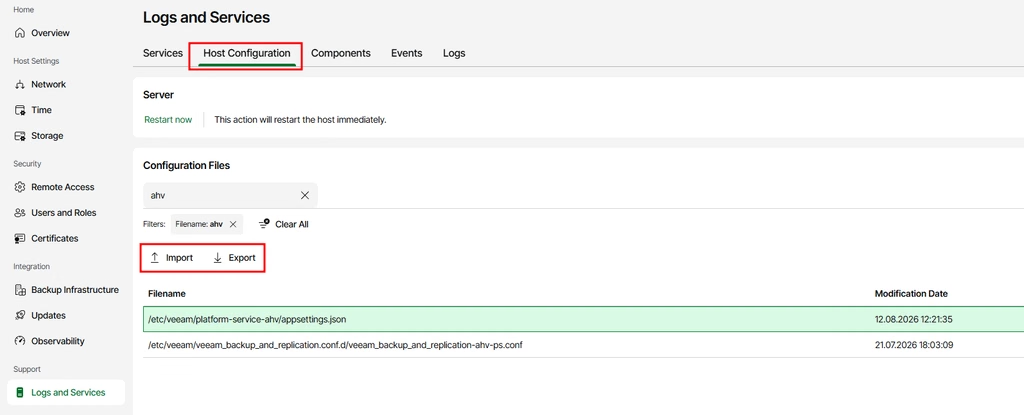
First, we need to export the configuration file to the workstation. In the file we can adjust driver-injection-related options:
"EnableDriverInjection": true,
"EnableDriverInjectionPreCheck": true,
"DriverInjectionPreCheckPerDeviceTimeout": "2 min"
Import the updated config and restart the service:
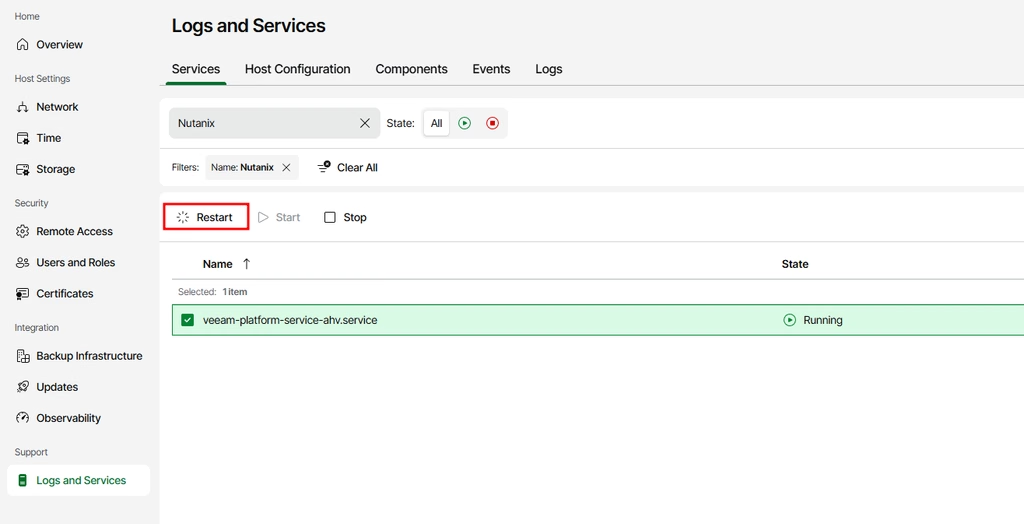
As a result, no driver injection events will appear in the restore log:

And a Windows VM with VirtIO drivers installed will boot, while a VM without drivers won’t:
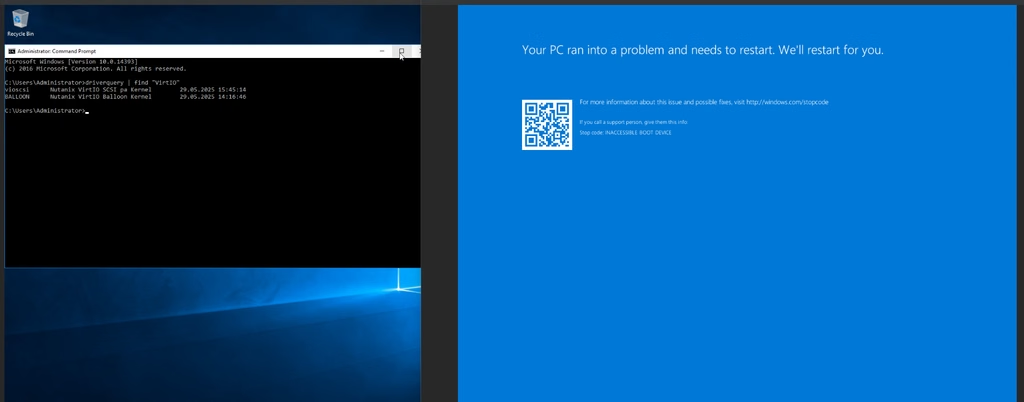
This is how it worked prior v13.1.
