The purpose of this article is to demonstrate the process of managing Proxmox Virtual Environment backups using Veeam 13.1 via the Web UI of the Veeam Software Appliance.
In this article, we will walk through the following steps:
- Adding PVE servers to the Veeam infrastructure;
- Configuring a Worker node;
- Creating and running a backup job;
- Restoring a VM from the backup.
To demonstrate the process, in my lab I use three PVE 9.2 hosts with the two different types of storage:
- NFS-share;
- iSCSI LUN with the enabled LVM.
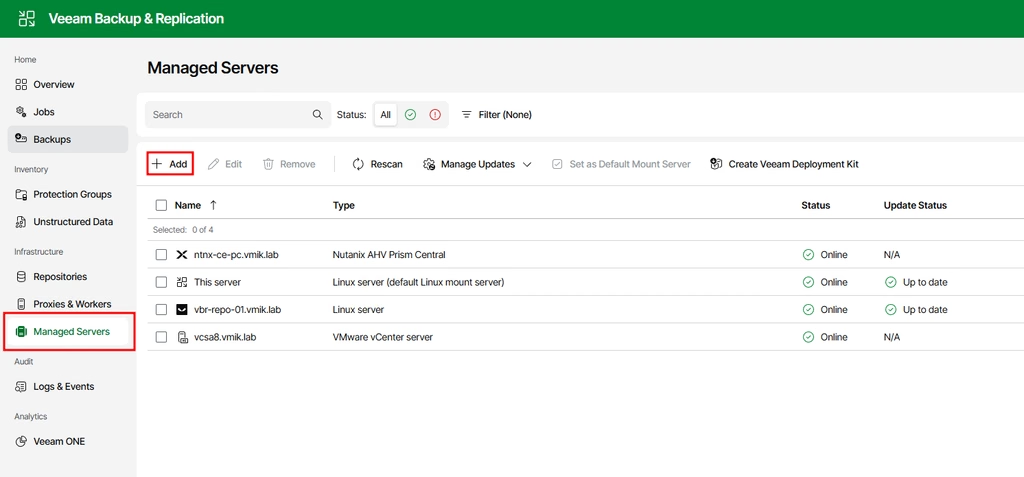
To add a PVE server to the infrastructure, we need to open the Managed Servers menu and click Add:
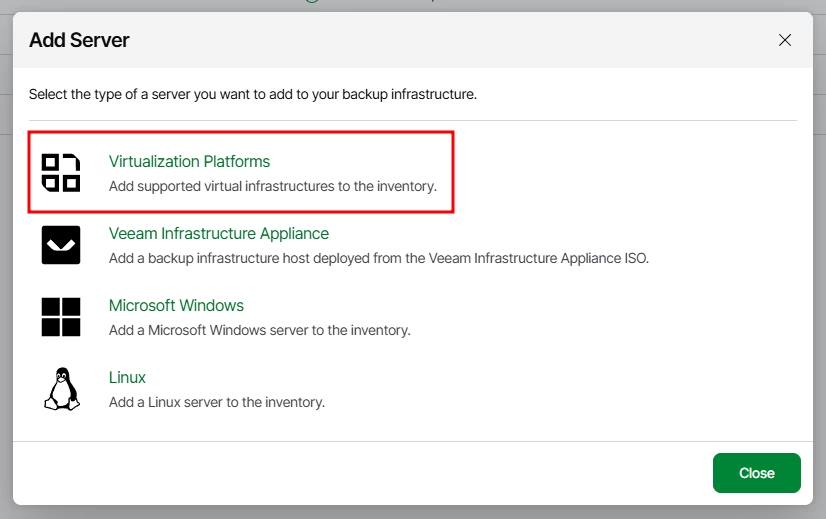
Among the options, select Virtualization Platforms:
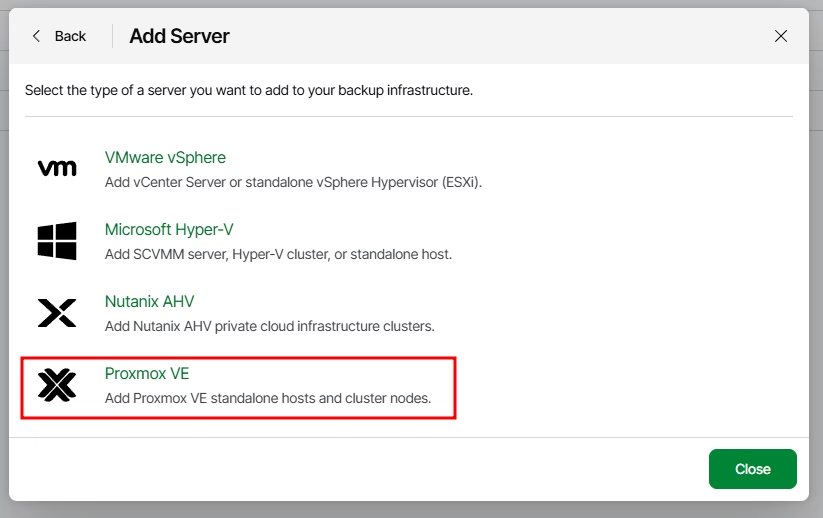
Select Proxmox VE as a type of Virtualization Platform:
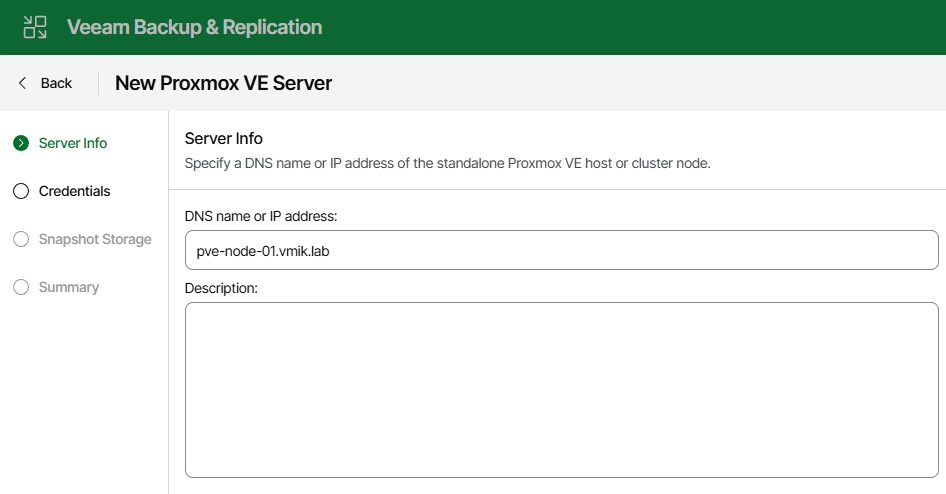
In the following window, provide the host’s IP address or DNS name:
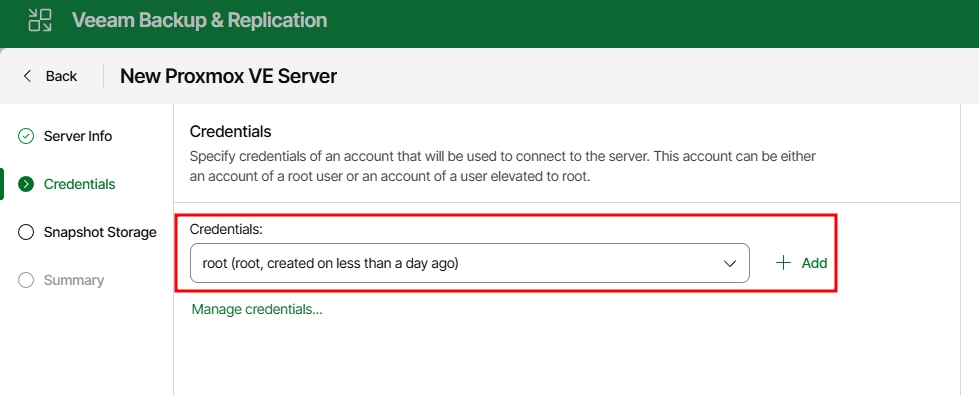
Add an account using it to connect to the server. In this case, I use a local root account, but I do not recommend you do so for the production environment:
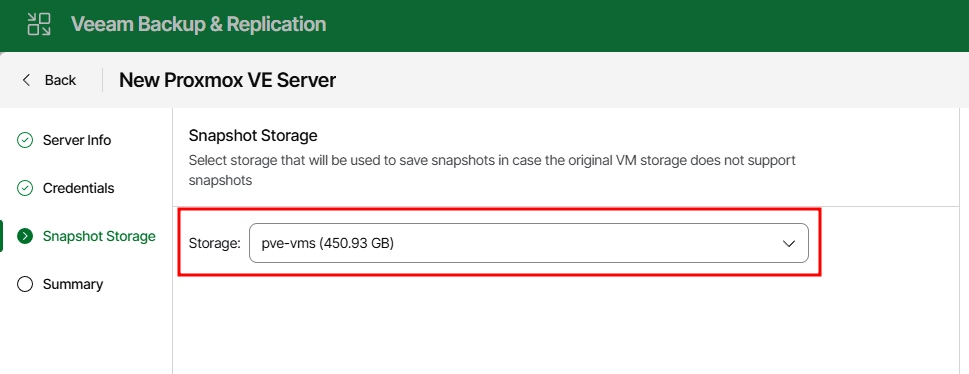
In the next step, select a storage that will be used to keep snapshots of the VMs that does not initially support snapshots.
This must be a file-based storage, like an NFS share or a local disk:
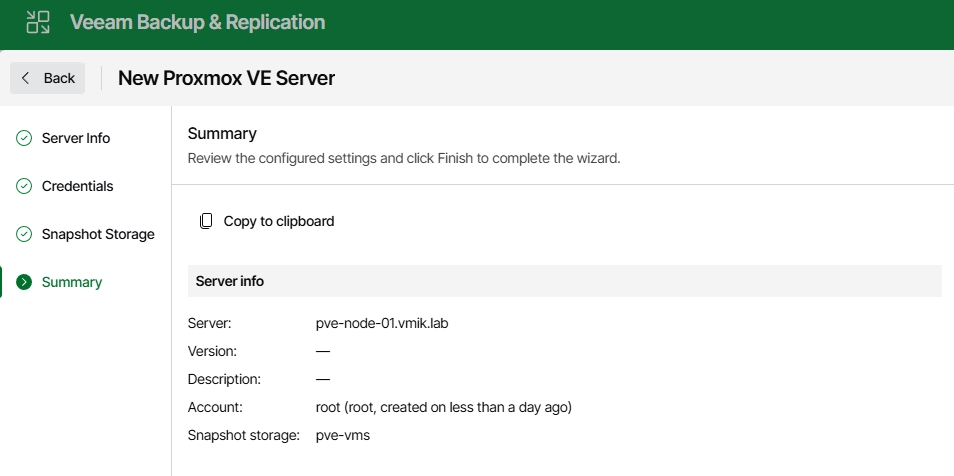
Review the setting and finish the process of adding a node:
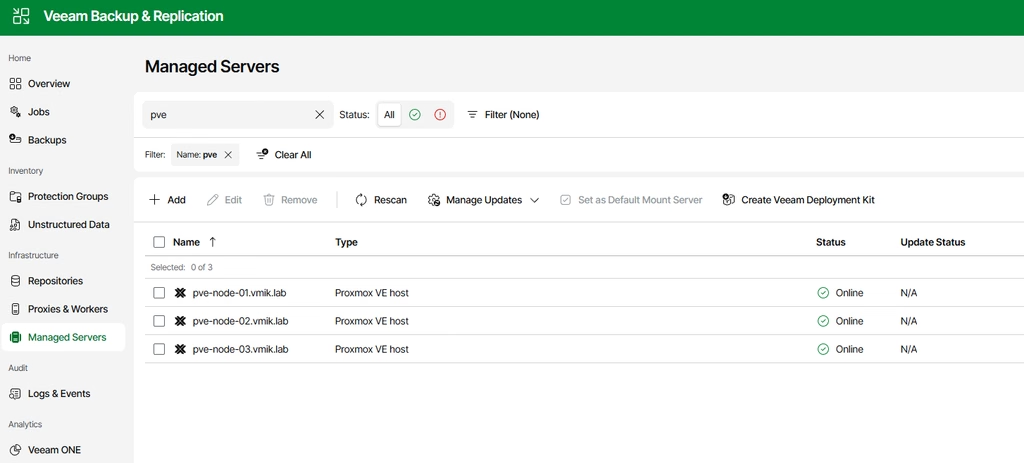
As you can see, a new PVE host appeared in the managed servers list:
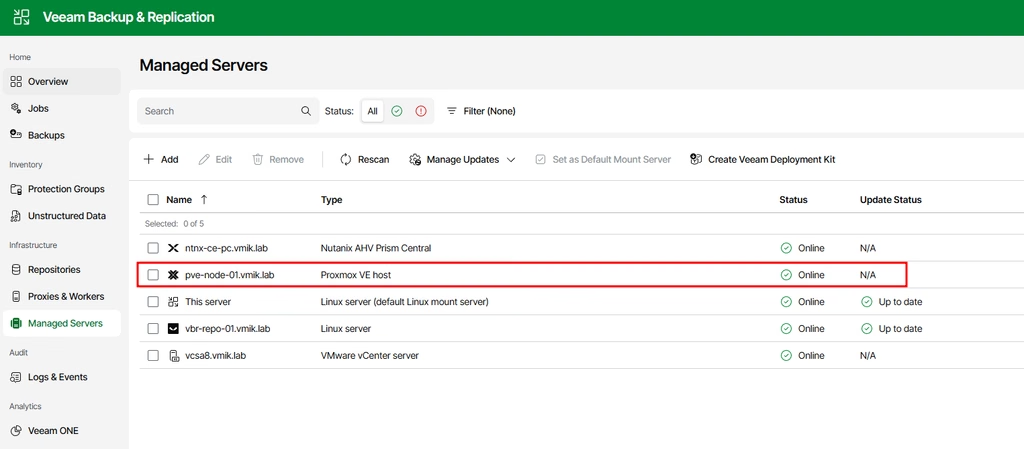
Repeat those steps for all other hosts you want to backup from. I did it for pve-node-02 and pve-node-03 as well:
The next step is to deploy at least one worker node for our cluster. Consider the worker node as a proxy for VMware. If you’re a Nutanix user, you should be familiar with the worker concept. In the PVE case, it is the same.
In short: Worker is a VM located in the target cluster and handles all tasks related to the backup or restore target VMs and moving backup traffic between virtual infrastructure and repositories.
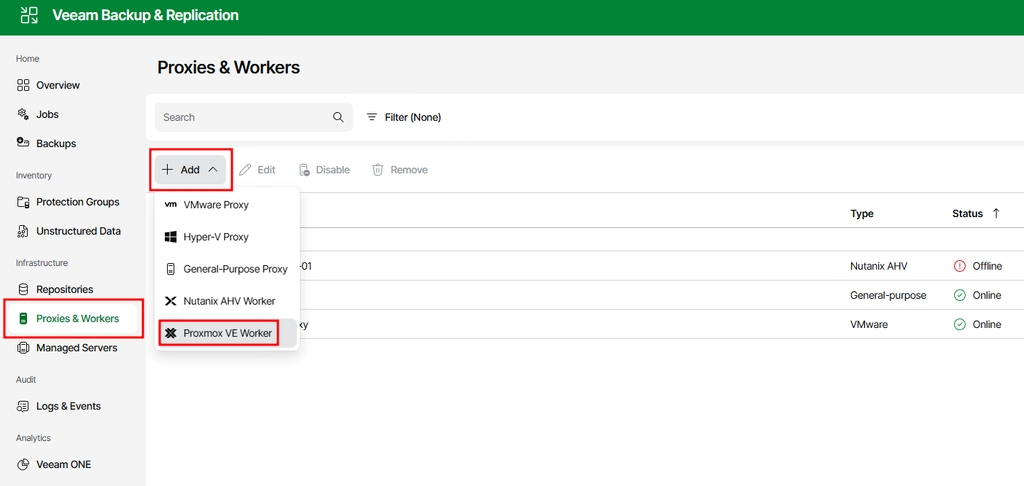
To add a new worker, open the Proxies & Workers menu, click Add, and select Proxmox VE Worker:
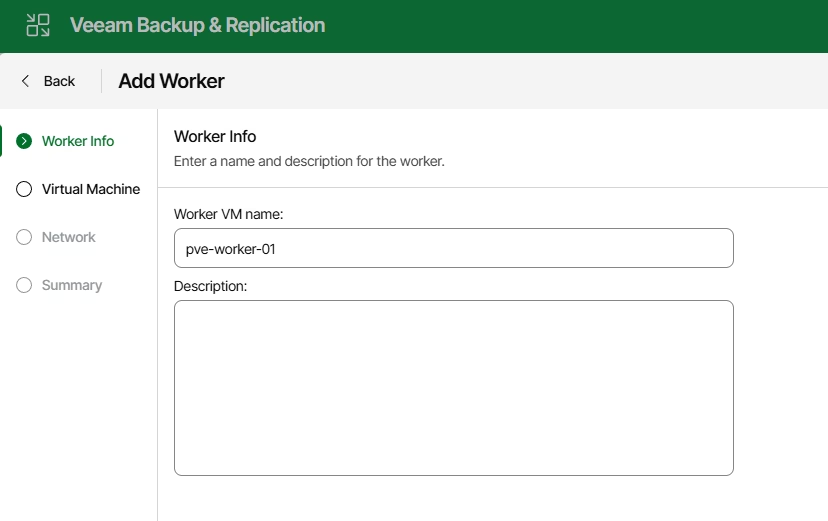
Provide a worker name:
Select a host and storage to deploy the worker node:
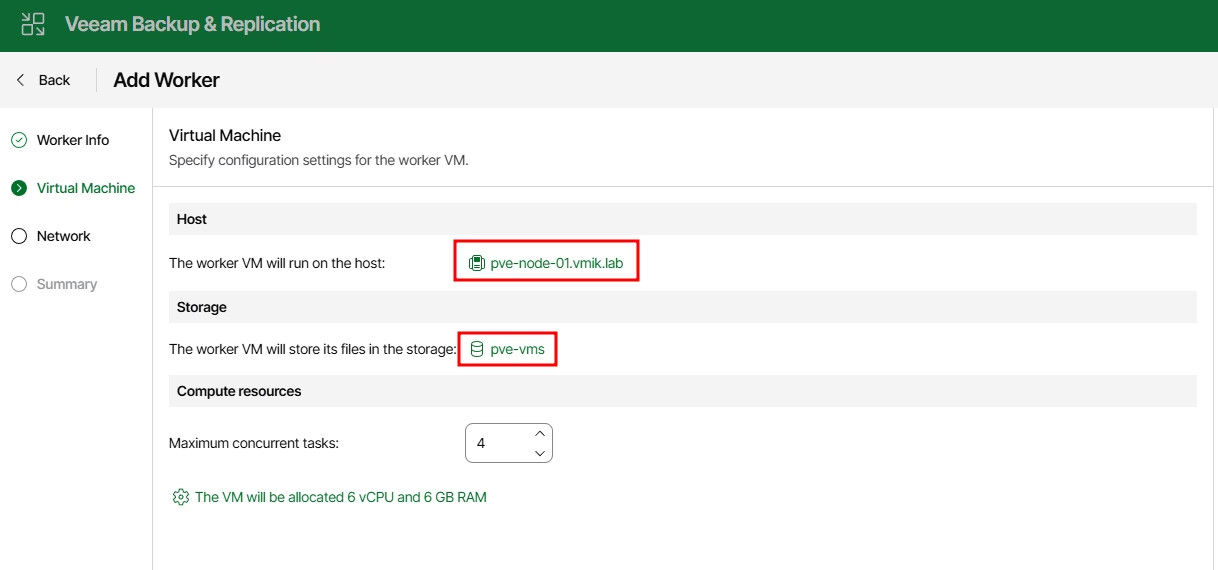
In addition, we can manage worker resources based on the number of VMs we want to backup.
In the next window provide network settings if necessary:
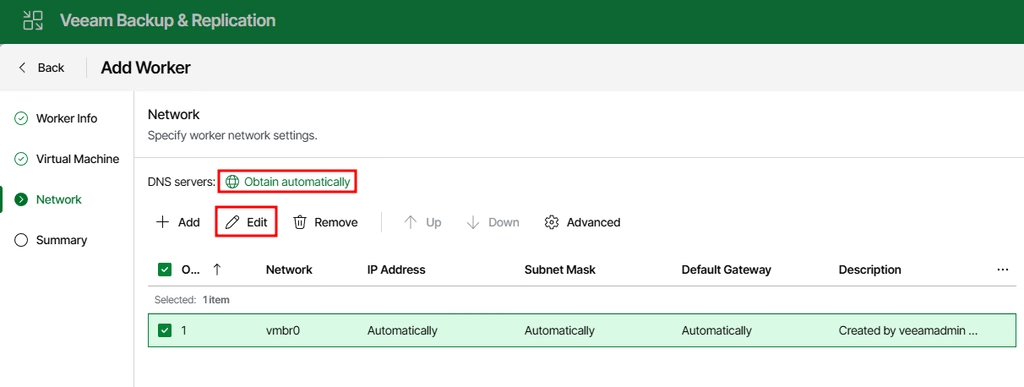
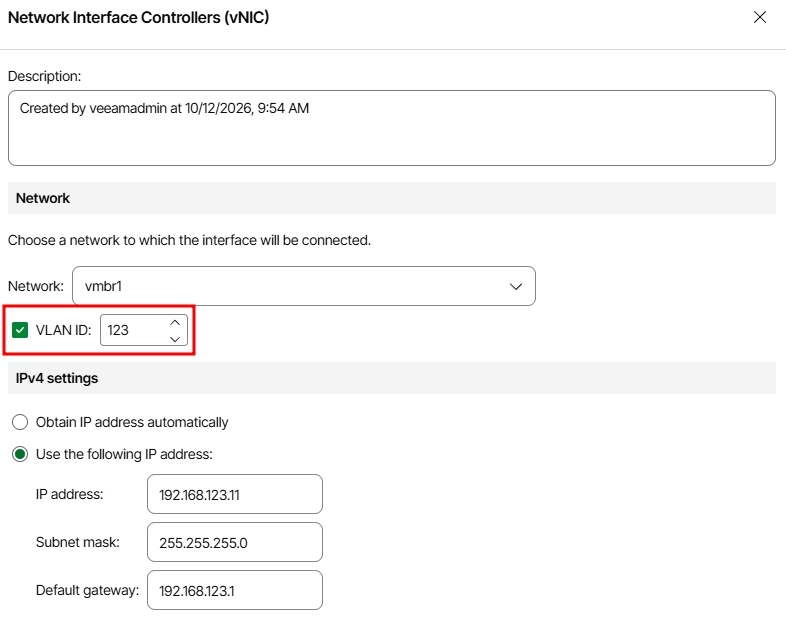
If needed, we can change the bridge and VLAN for the worker node:
One thing to mention here. Clicking the advanced settings, we can disable checking for the updates:
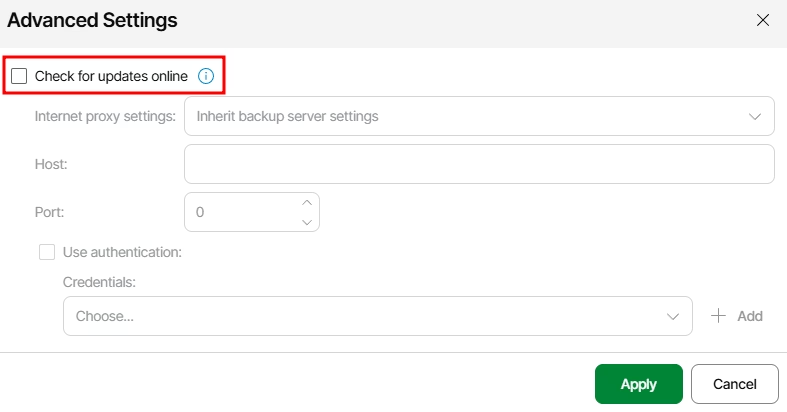
Why should we do that? Each time the worker is powered on, it checks for updates and installs if necessary. It takes some time, but the biggest problem is happening when your worker does not have an internet connection. It can get stuck in the “checking for updates” state for up to ten minutes, and while the worker does not finish this task, it does not move to the next step (backup or restore).
Therefore, if your worker does not have an active internet connection, it’s better to turn this check off.
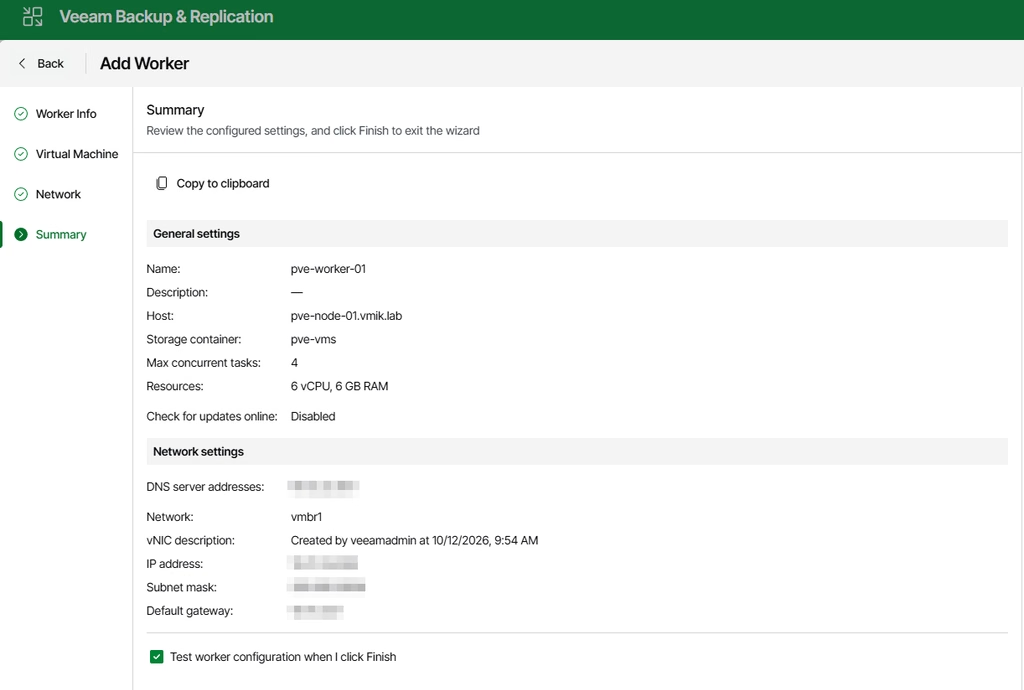
Review the settings and finish. If you want to test the worker, mark the corresponding option:
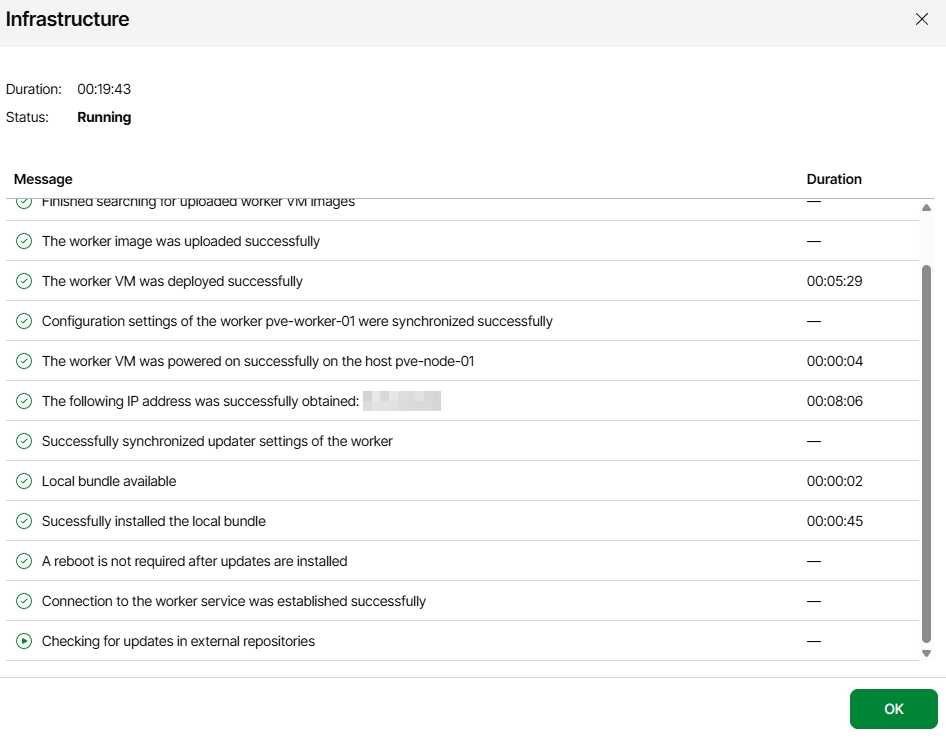
If you decided to test the worker, you can observe the whole process:
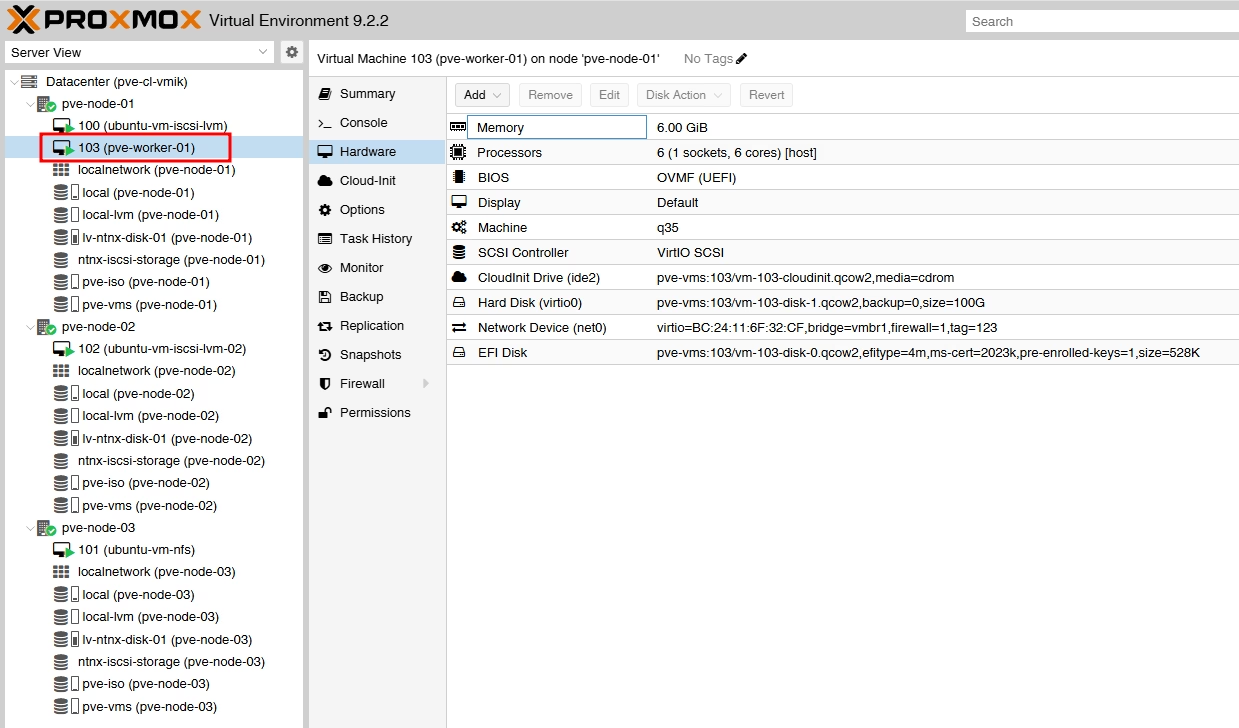
After deployment, you can see a new VM in the PVE infrastructure:
And a new worker in the list:
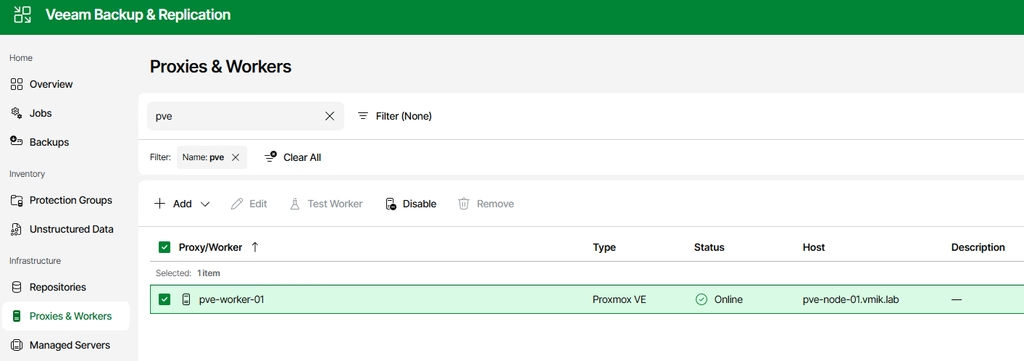
You can see that on this screenshot the worker status is “Online”. Typically, all workers are in the powered-off state, and powering on is only done during backup or restore procedures. Do not be afraid if your worker status is offline. It is normal.
In my case, I just took a screenshot during deployment, while the VM was powered on.
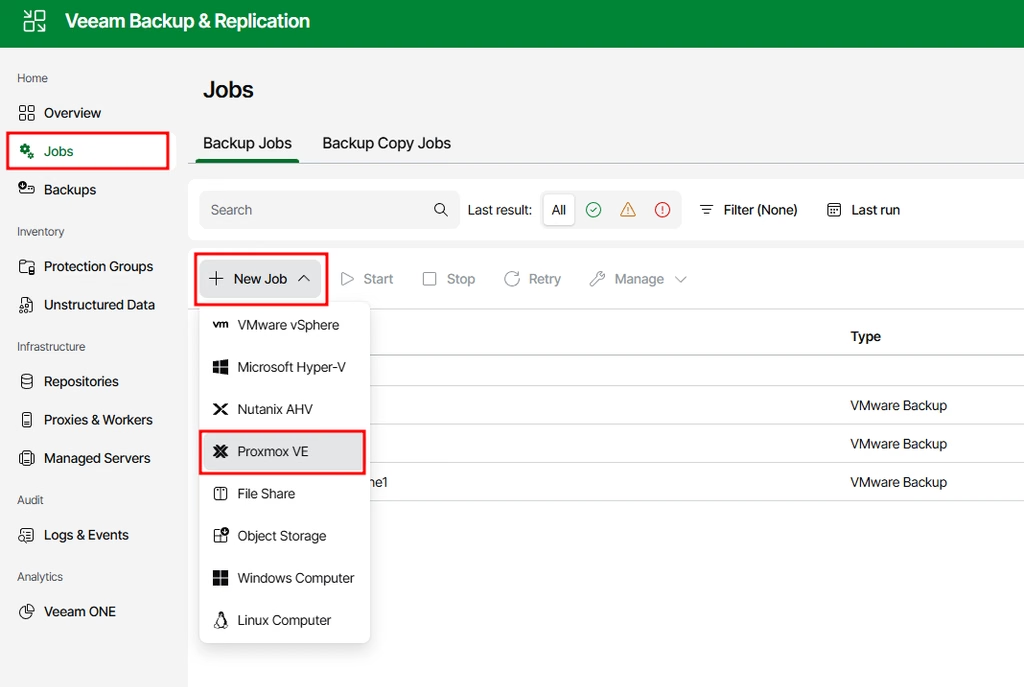
After adding a worker node, it’s time to create a backup job:
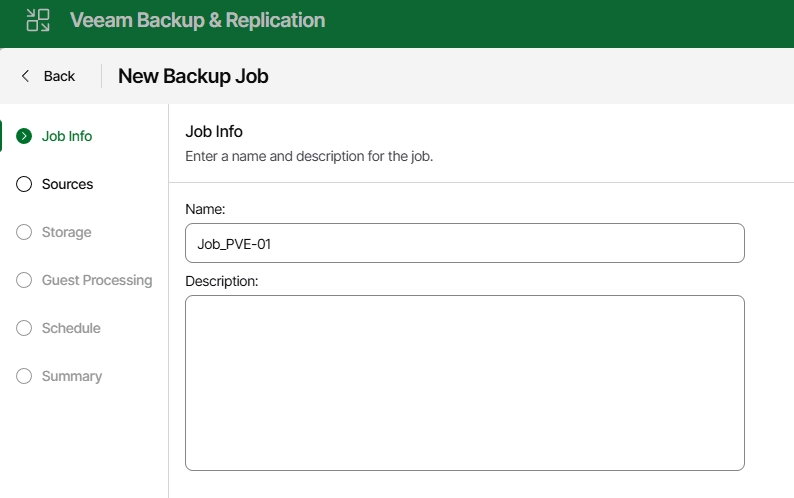
As usual, provide a job name:
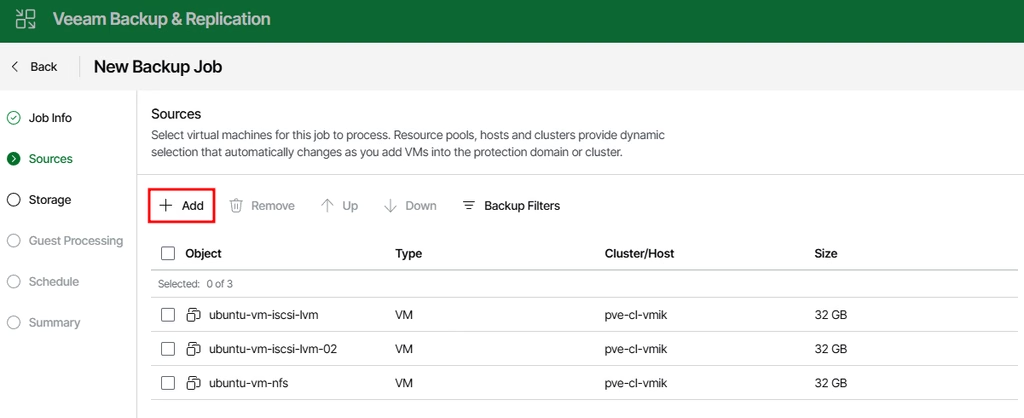
Select VMs by clicking add in the next window:
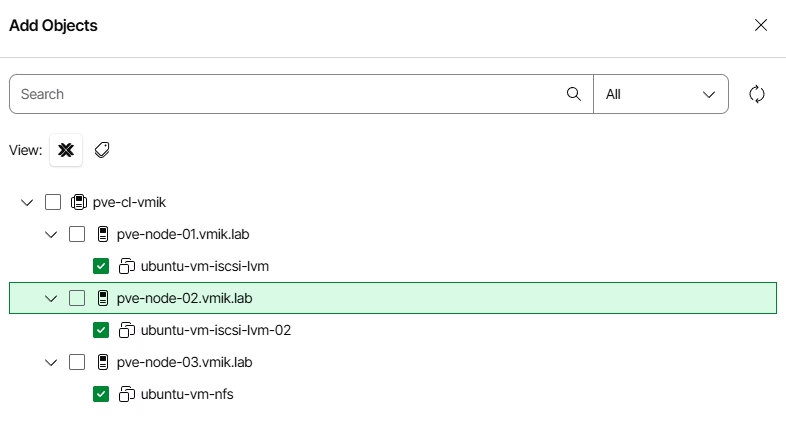
Mark VMs, you want to add to the job:
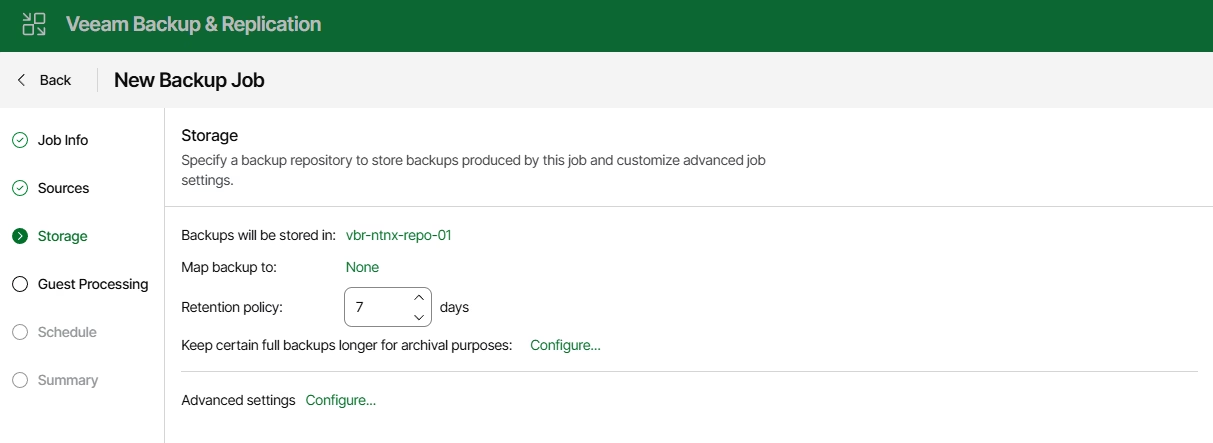
In the next window, select a backup repository and a retention policy:
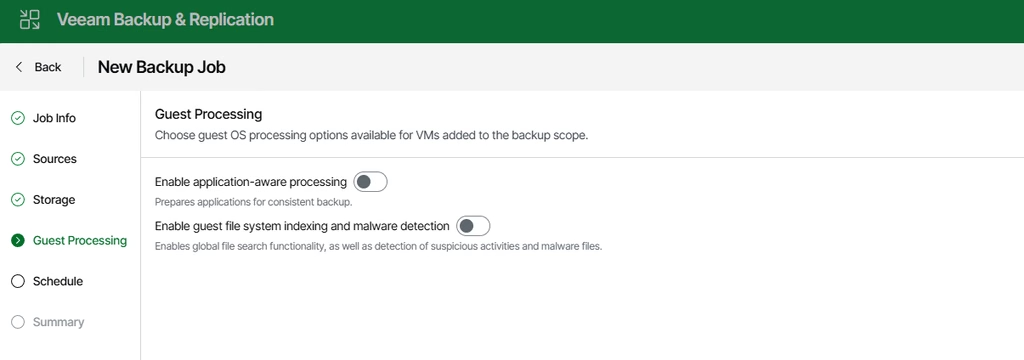
Next, enable guest processing if needed:
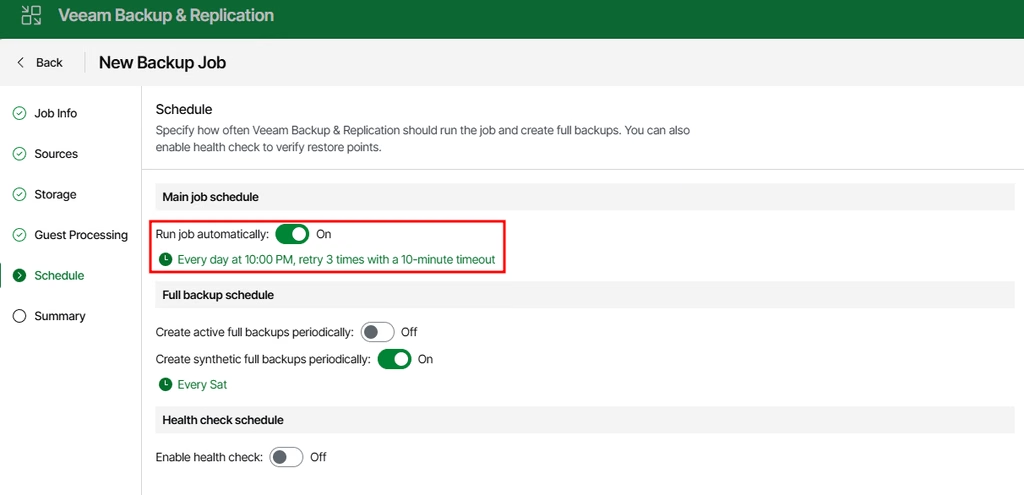
The last step is to configure the schedule:
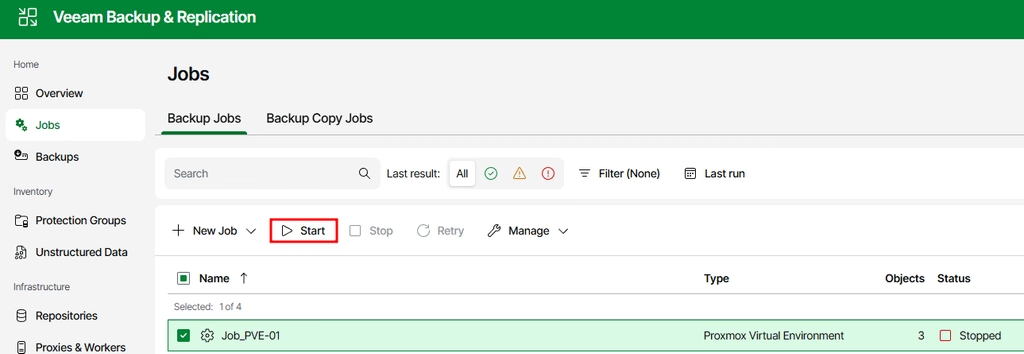
Save the job and run it:
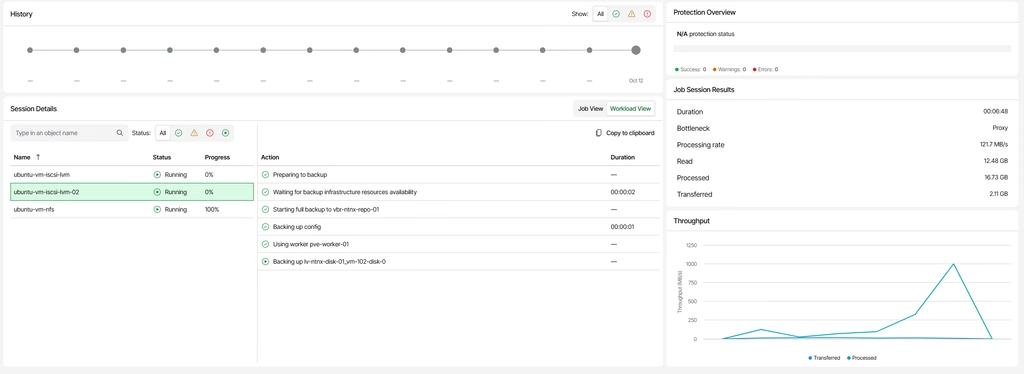
Clicking on the job, we can see detailed statistics, including the runtime log:
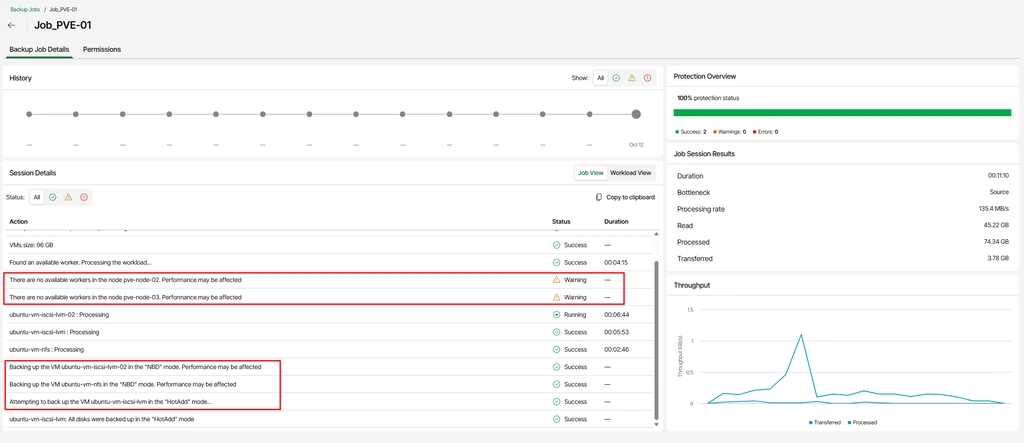
You may notice that for VMs located on the same host with the Worker, the system uses HotAdd backup method, while it uses NBD for VMs located on the remote hosts.
If you click Workload View, you can see per-vm statistics:
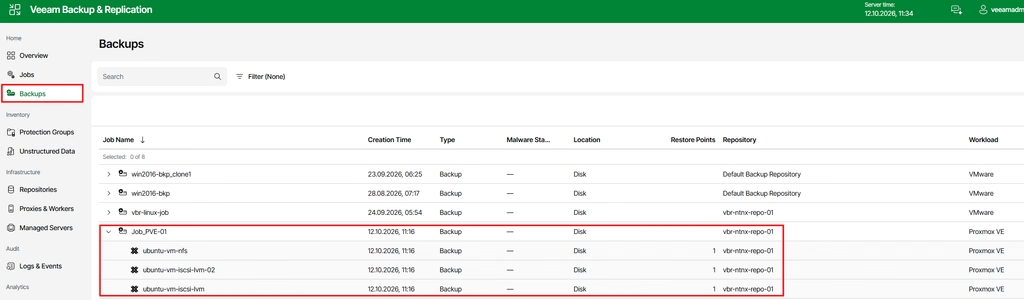
After finishing the job, we can find a newly created backup in the Backups menu:
Let’s restore those VMs. Select VMs you want to restore, then click Entire Restore and select a platform:
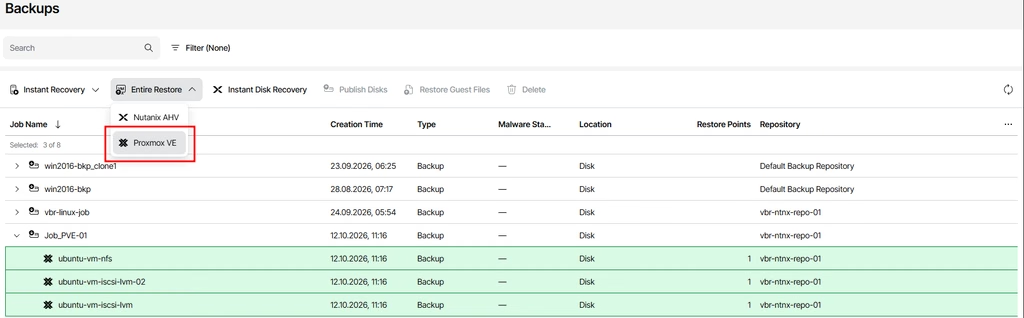
You can see that direct restore to the Nutanix environment is also supported.
First, select a required restore point:
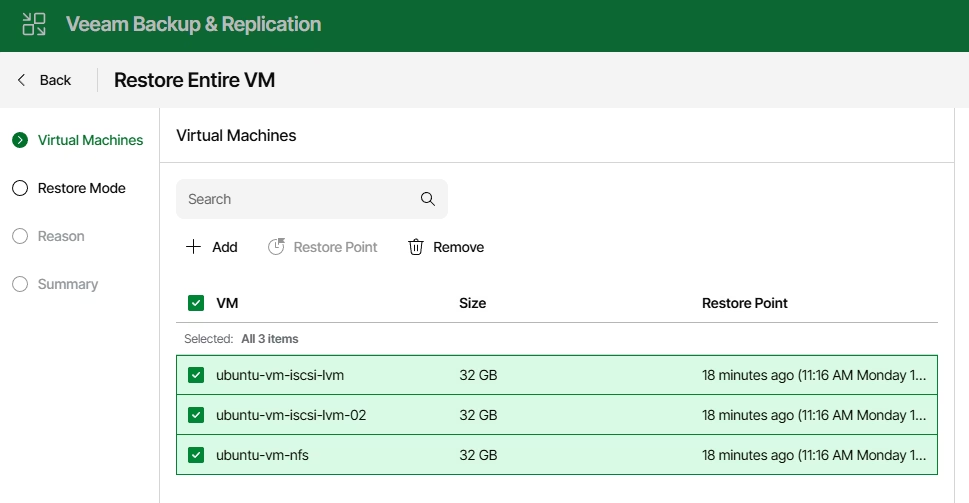
In this example, we will restore VMs to the new location:
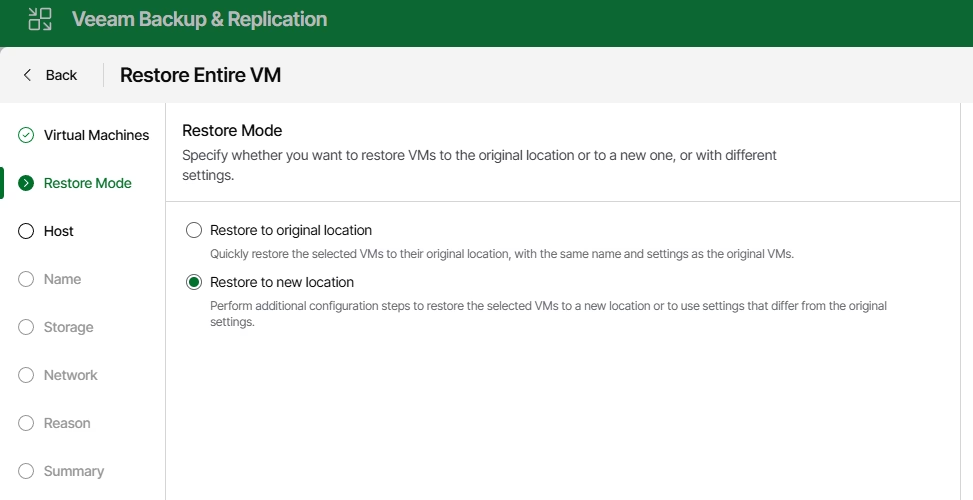
Keep in mind, if you select “Restore to original location”, original VMs will be overwritten.
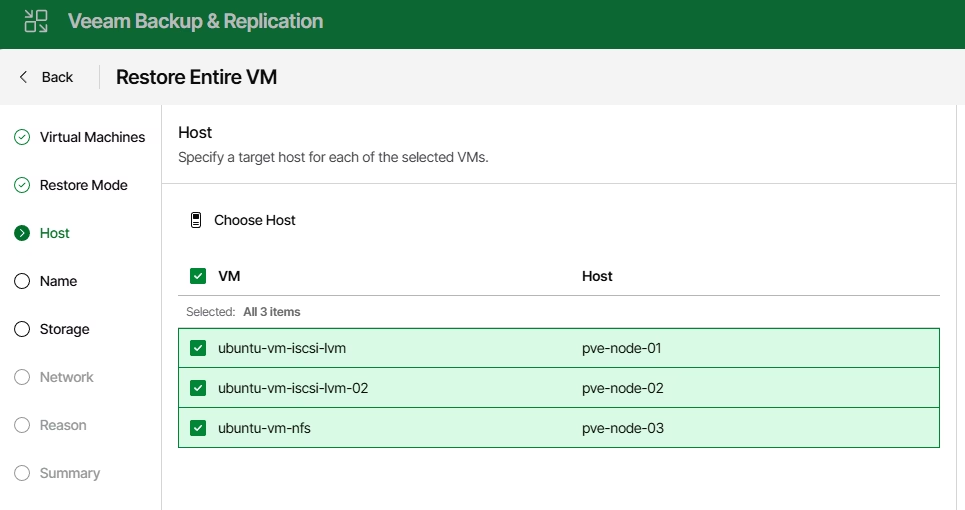
Next, we can select a host for each VM or keep them default:
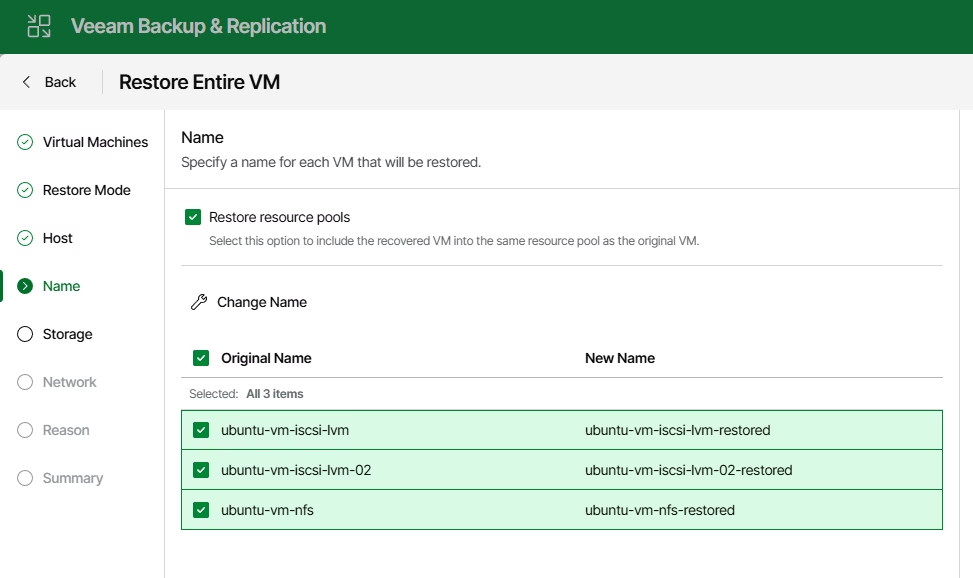
After that, we can change the name of the VMs. I prefer to add a “–restored” suffix:
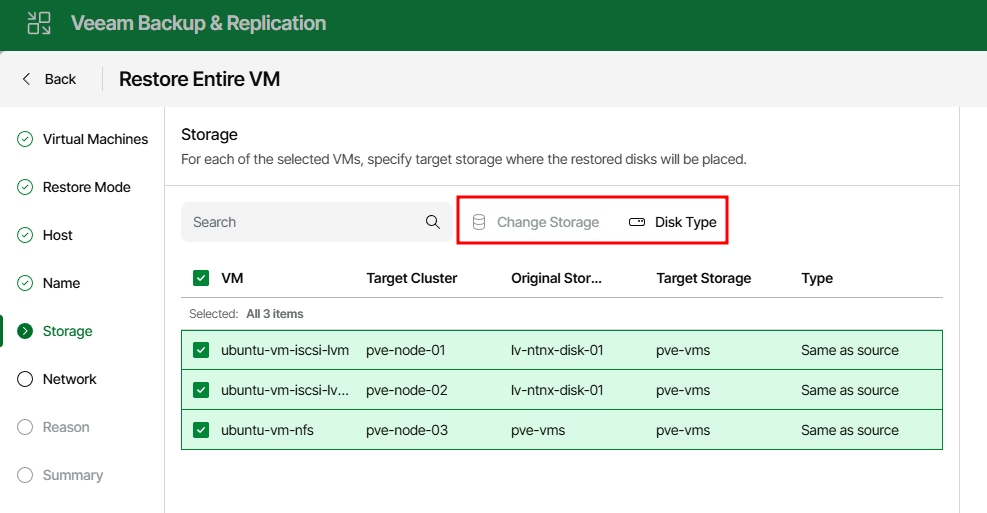
On the storage configuration, we can set up storage where VMs will be restored. In this case, I restore all my VMs (including LVM-based) to the NFS storage.
Select a VM and change storage and disk type if needed:
The last step is to configure the network for the VMs:
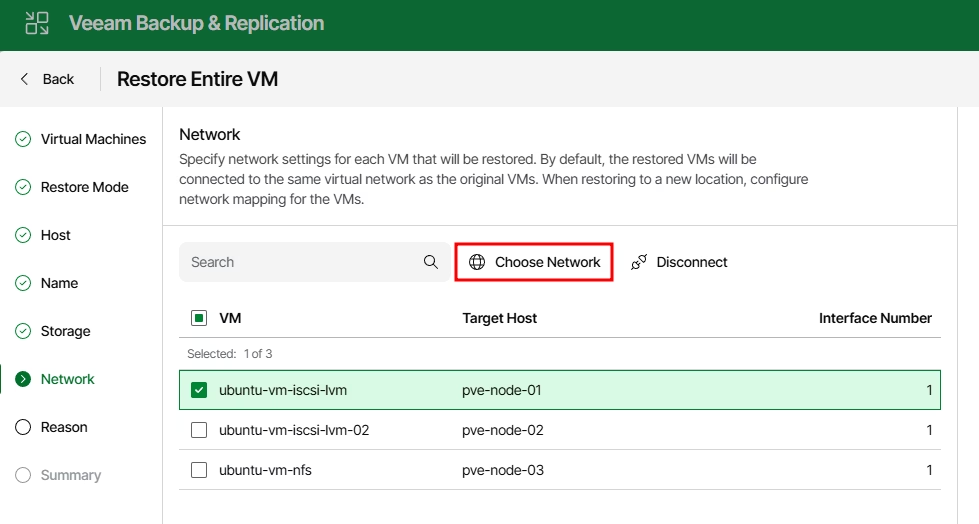
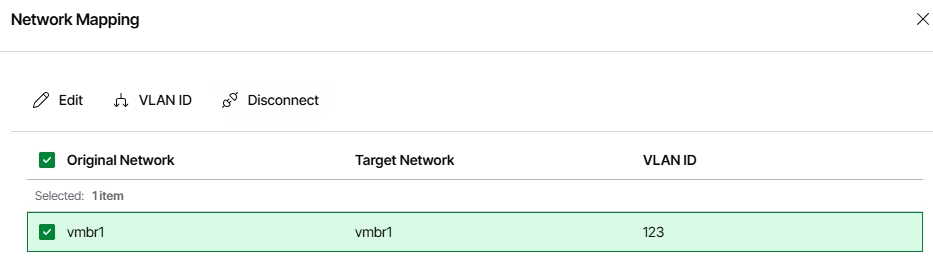
It’s also possible to change the bridge, VLAN, or disconnect an adapter:
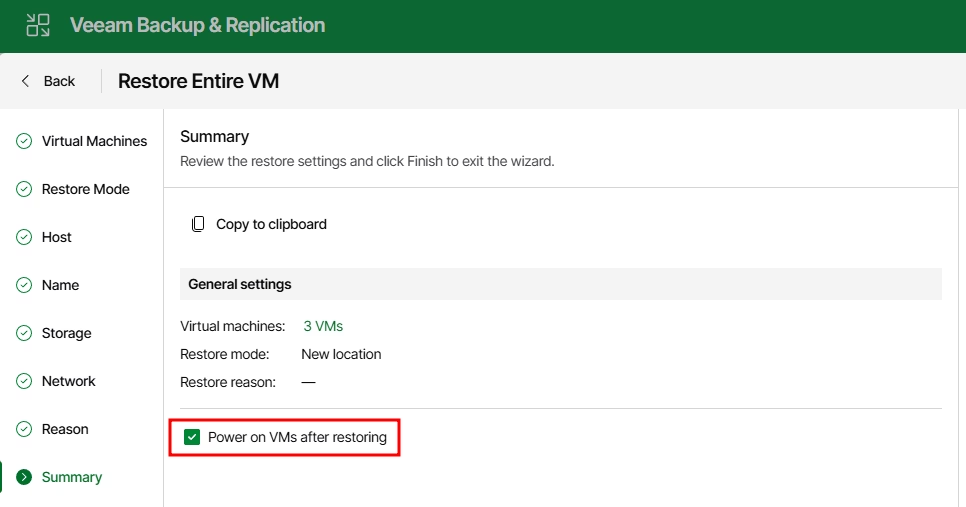
Review the setting and begin the restore procedure. We can power on VMs after restoring by selecting the corresponding option:
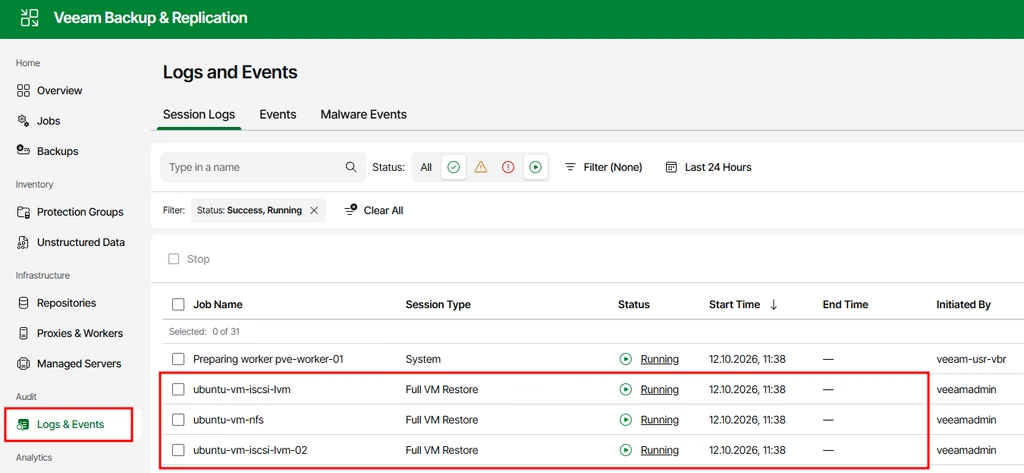
Move to the Logs & Events menu, where we can find all created tasks:
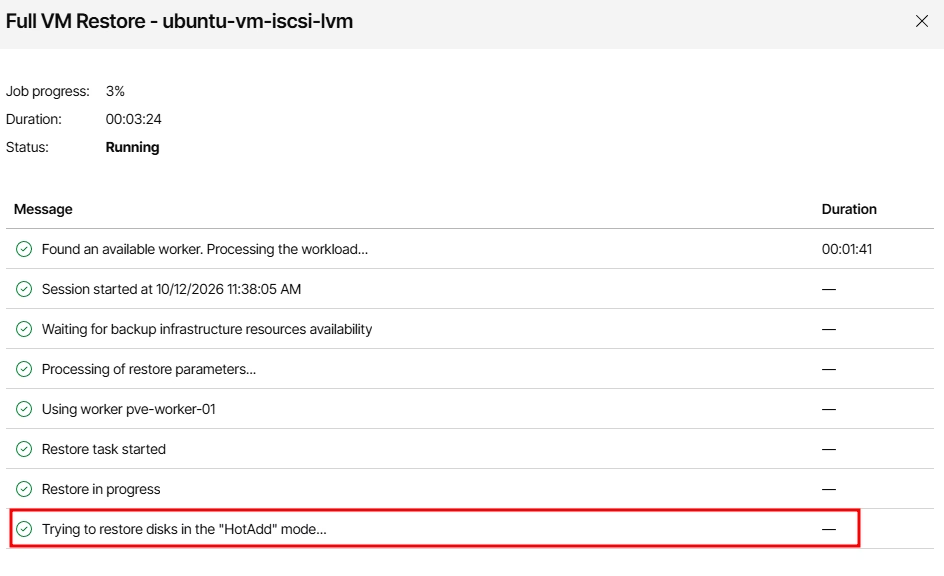
During restore, Veeam will use HotAdd for the “local” VMs:
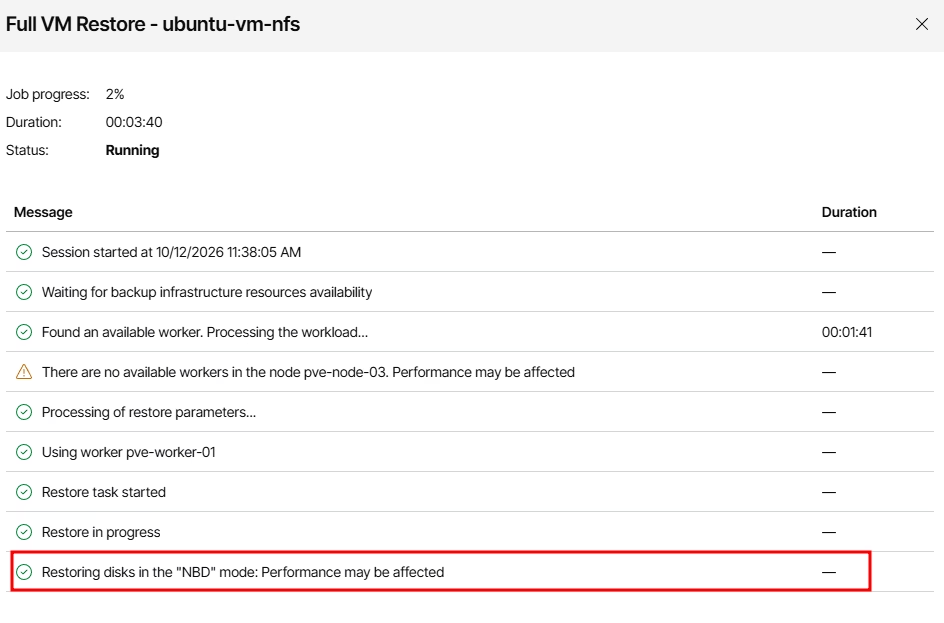
And NBD mode for the remote VMs:
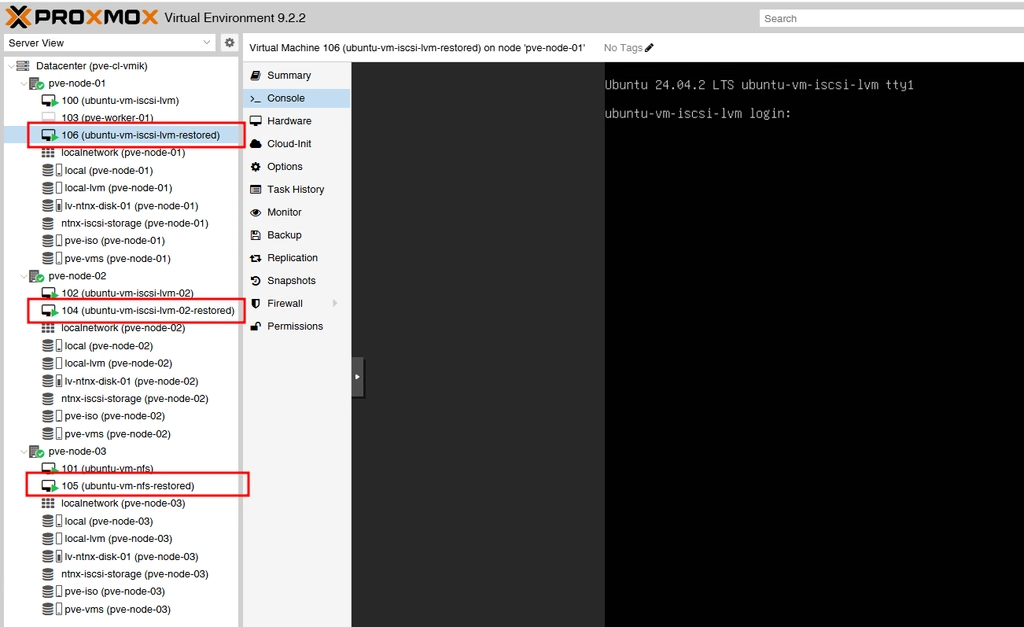
After restoring, you can see all three new VMs in the PVE infrastructure:
What if you are tired of the warning messages raised by the jobs and want to use HotAdd mode for all your VMs? Consider installing workers for each of your hosts, or at least for hosts with the large VMs on them:
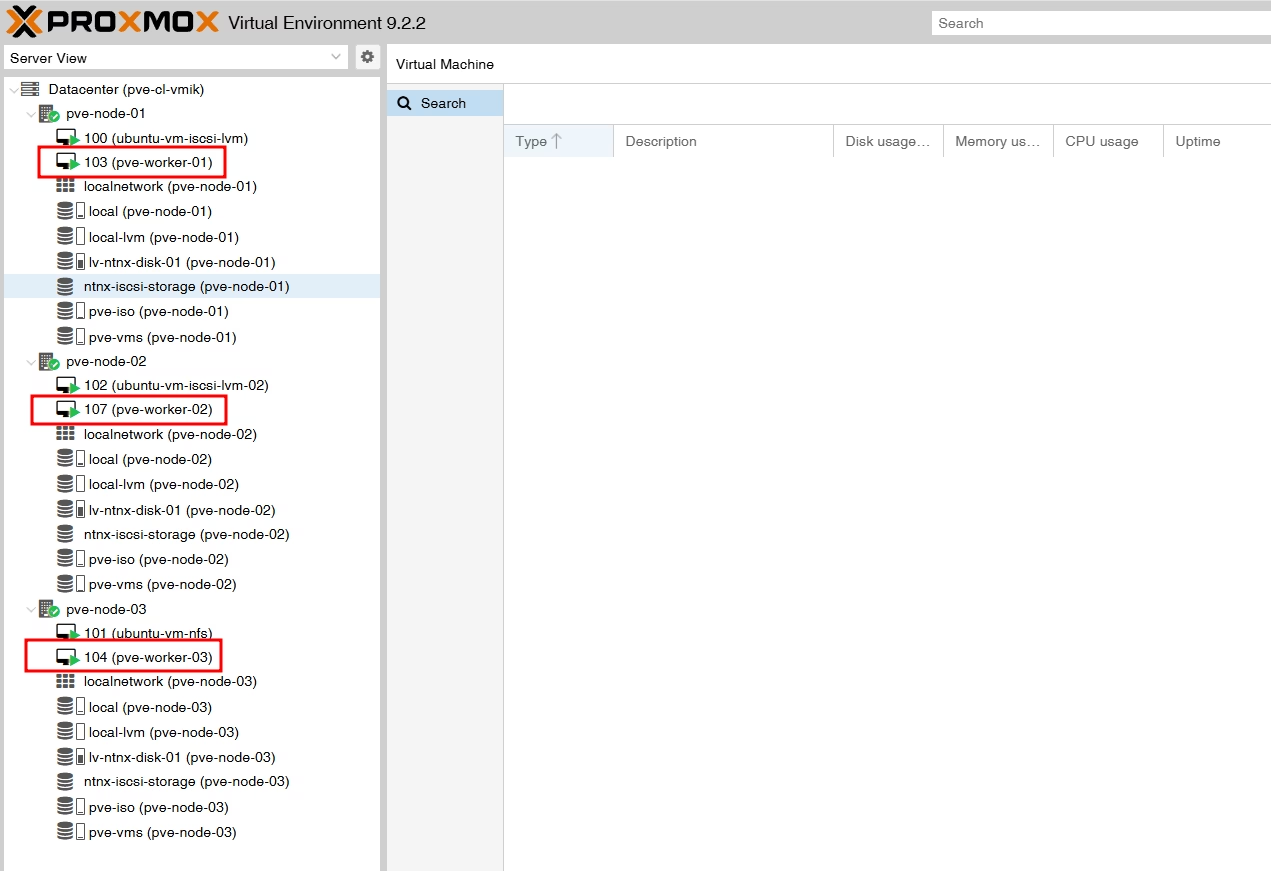
As you can see, in my case Veeam uses HotAdd mode for all VMs now:
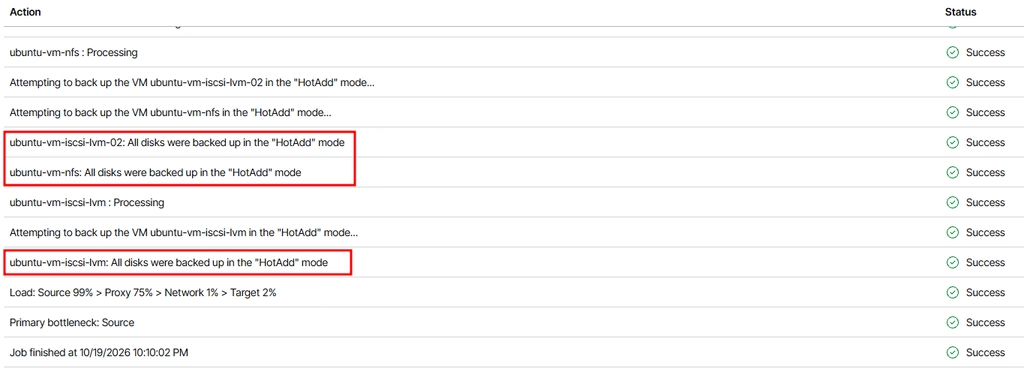
The same applies to the restore as well.
Even in my nested lab, HotAdd mode demonstrated better performance compared to the NBD mode, so I advise using it if possible.
Worker is a lightweight VM, and usually it is powered off, so deploying multiple workers should not be a big deal.
