With release 9.1 of vCloud Foundation and vSphere Foundation a new component called the License Server was released.
The License server is a dedicated protected repository within your environment used to keep licensing data. For each VCF Operations instance, we need to use at least one License Server.
Right after updating my VCF Operations instance to version 9.1, I saw a banner with the message: “Your registration needs to be updated with a license server. Go to Licenses & Registration page to update the VCF Operations registration and access the available licenses”, which means we need to deploy and connect a new License Server. In this article, I will cover this process.
You can read more about the License Server in the following documentation.
In short, this is a lightweight VM (2vCPU/4GB RAM) used to store VCF/VVF licenses. This VM connects to VCF Operations to check for updates, send license usage data and retrieve updated license files.
VCF Operations coordinates license assignments across vCenter instances. Meanwhile, a vCenter instance contacts the License Server directly whenever a license is applied or a host is added/removed.
While you might expect the License Server to communicate directly with the external Broadcom Portal (vcf.broadcom.com / eapi.broadcom.com), it is actually VCF Operations that handles this task
Now, let us begin with the deploying.
In my case, before the update, I had a fully licensed VCF instance operating in ‘connected’ mode.
As I mentioned at the beginning, after the update, a banner appeared at the top of the VCF Operations console:

If you click ‘GO TO LICENSE & REGISTRATION’, you will be redirected to the corresponding page.
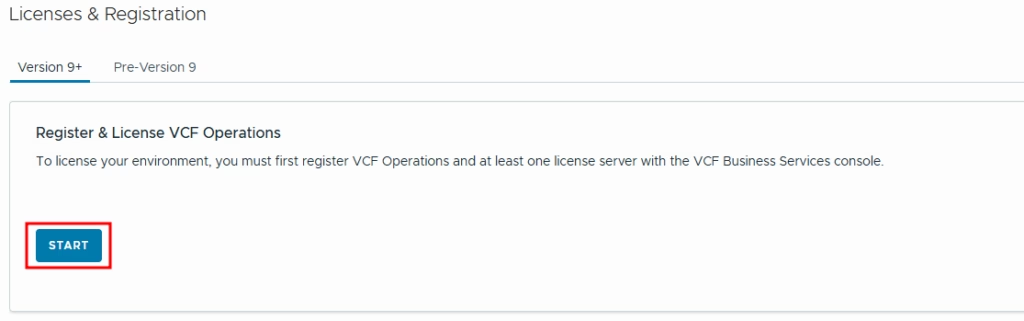
As described, we need at least one license server. Click start, to open the license server registration page:
On this page, we can see a short instruction:
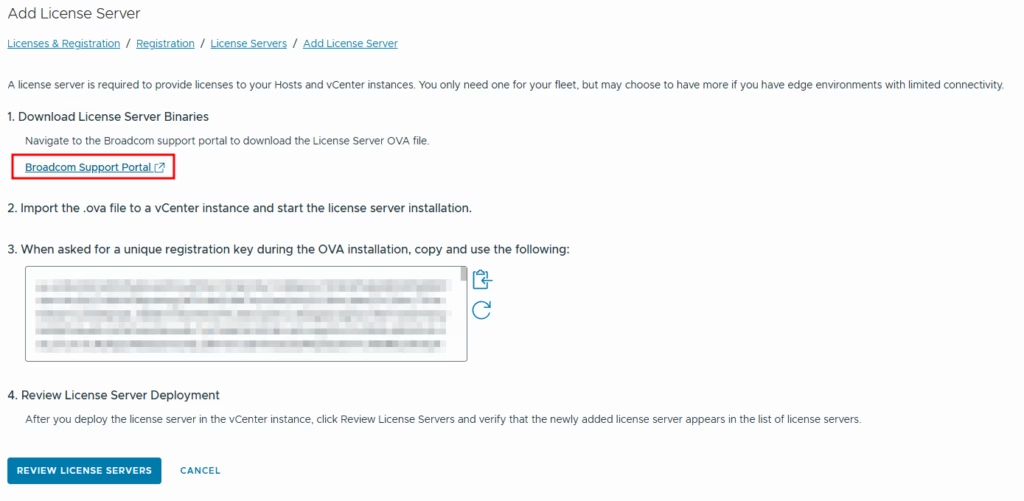
The first step is to download the License Server OVA file. You can click the link, and it will opens a new window redirecting you to the Support Portal with the required package.
By default, it redirects to the VCF packages section, but if you only have a VVF subscription, you will not see any files there.
For VVF users follow the current path: My Downloads – VMware vSphere Foundation – VMware vSphere Foundation 9 – Select Version (9.1.0.0) – Choose License Server:
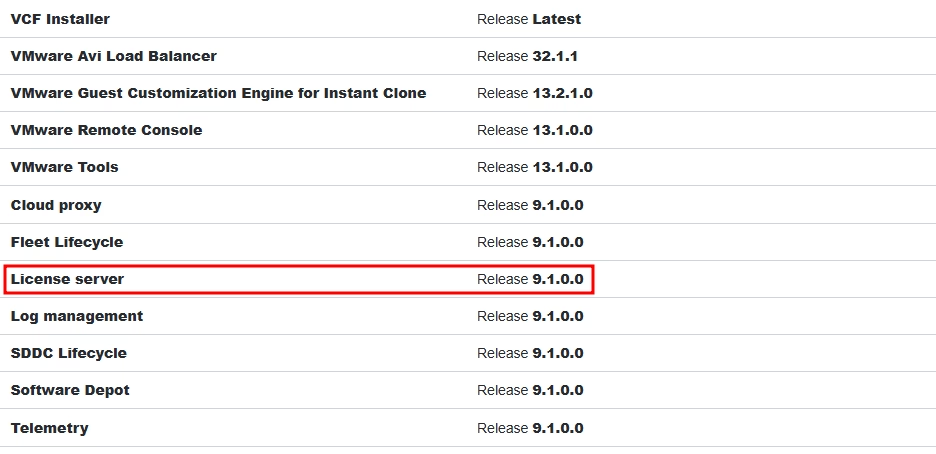
After downloading, you should have a file named like Vcf-License-Server-9.1.0.0400.25541557.ova.
Before deploying, you choose an IP address and register a DNS record (including PTR). This DNS name must be resolvable from both the vCenter instance and VCF Operations to enable communication with the License Server.
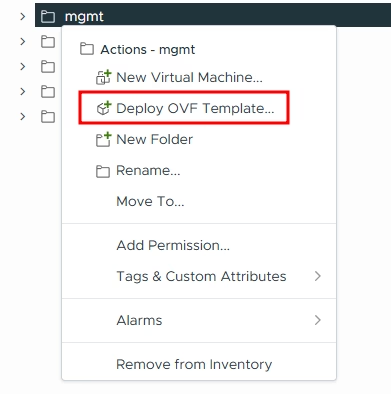
Now deploy a VM from the OVA as usual:
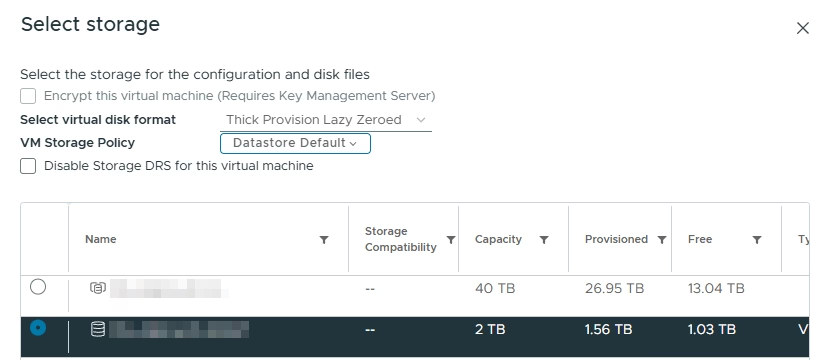
During deployment, you need to select a storage:
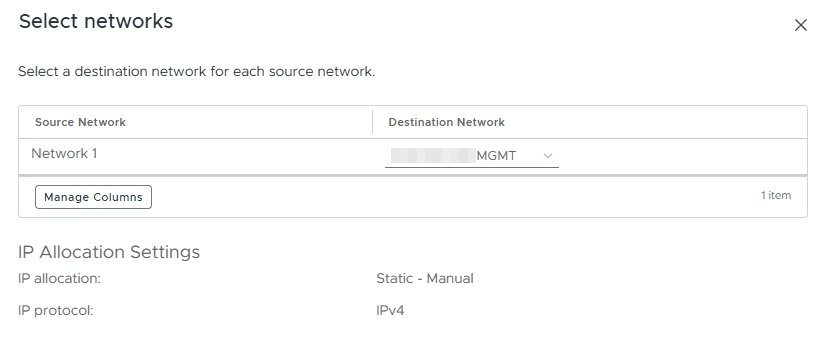
The network to which the VM will be connected:
Provide a VM hostname and Unique Registration Key:
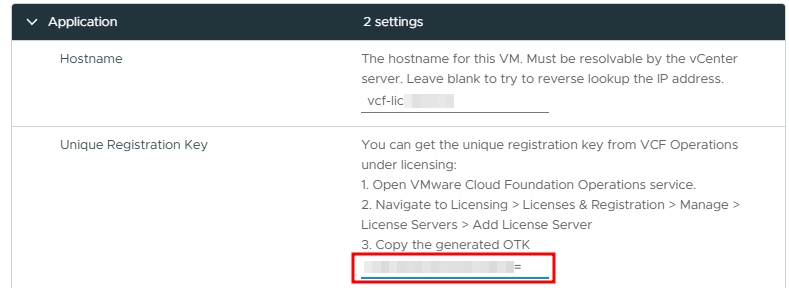
You may have seen the Registration Key in the previous screenshots. It can be obtained from the License Server deployment window (Step 3).
The Registration Key is a Base64-encoded string containing connection details for the VCF Operations instance.
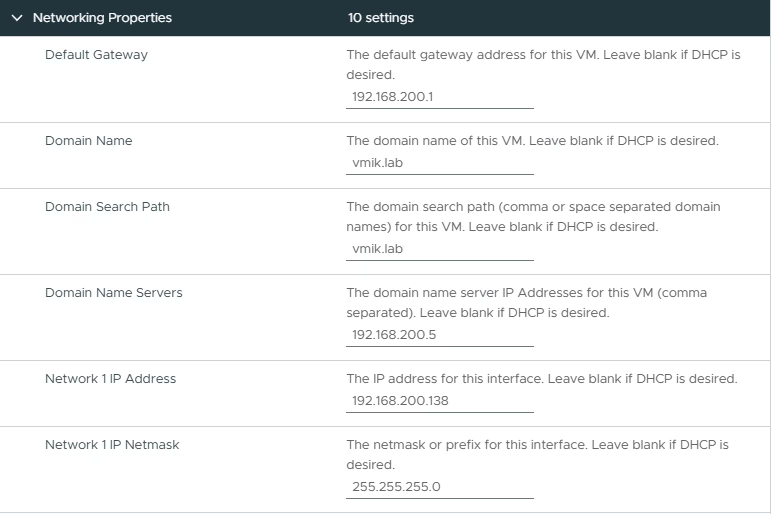
Next, provide IP address and DNS information:
Start deploying the appliance. Once deployment is finished, power it onm and you will see that it works:
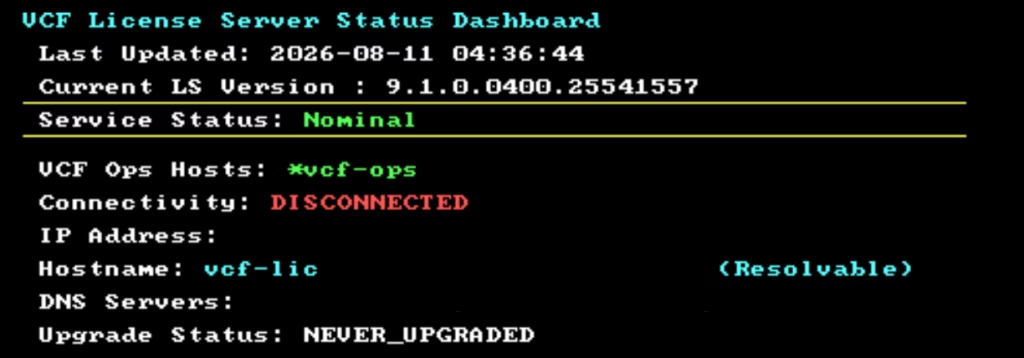
It might show, that it disconnected, but do not worry.
Return to the VCF Operations, and click “REVIEW LICENSE SERVERS”:
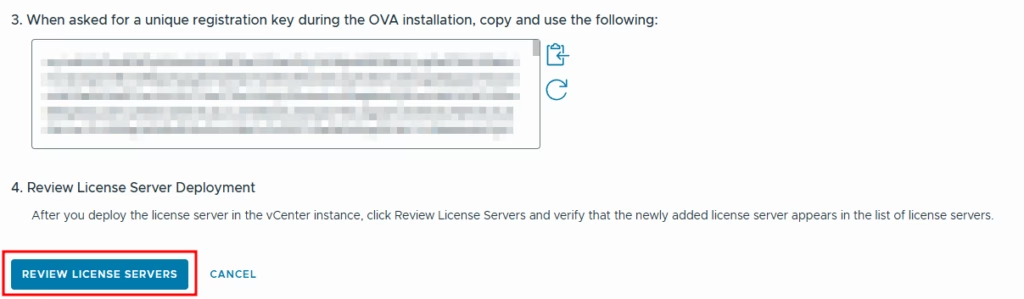
We will see a new license server:

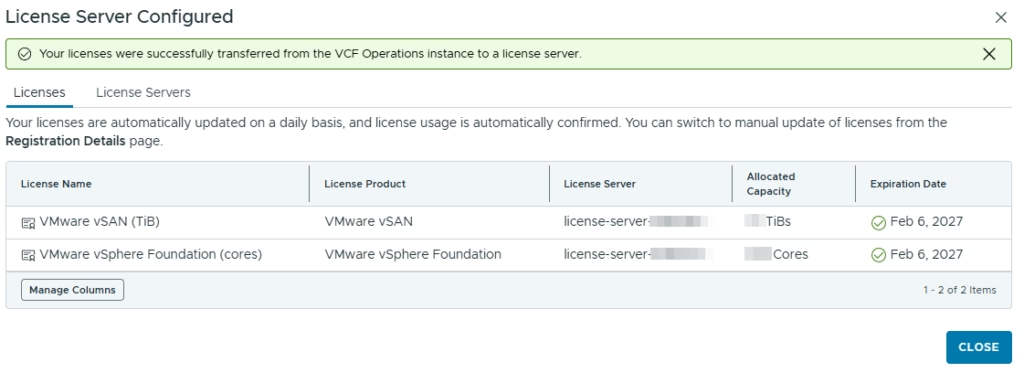
It will automatically receive all the necessary configuration from VCF Operations, and you will see that the vCenter server is already licensed.
If you check the licenses, you will see that they were successfully transferred from VCF Operations to the License Server:
If you click on the License Server, you will see all installed licenses, all registered instances, and the License Server health status:
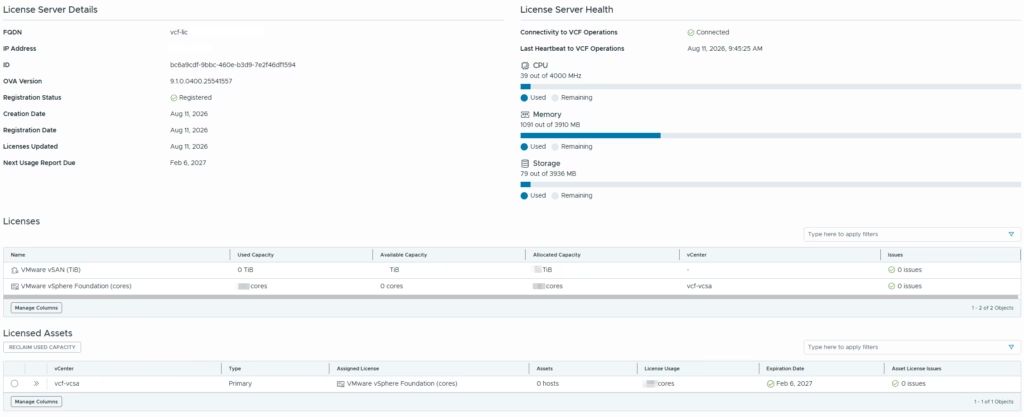
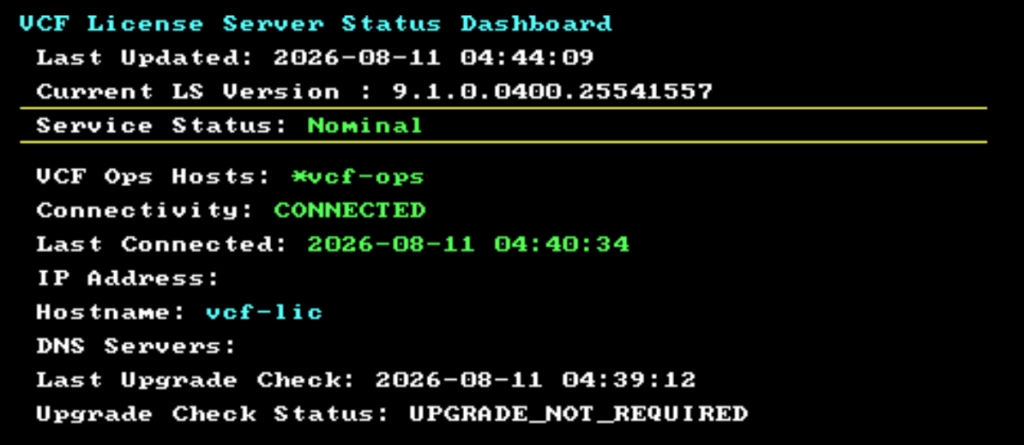
Returning to the License Server VM console, we can see that it is now connected and synchronized:
As you can see, adding a License Server to an existing infrastructure is no big deal, as most of the tasks related to license transfer are managed by VCF Operations and require no manual effort.
